1Before you start
StrengthNorm is a web application for physical therapists, occupational therapists, chiropractors, orthopedic surgeons and other physicians who test strength, range of motion and function: functional capacity evaluations, return-to-work and return-to-sport testing, injury and post-operative rehabilitation, and screening of older adults. You enter the results of a test; it compares each result with a published reference table for a person of the same sex, age and, where the study reports it, body weight or side, and shows where the client stands.
- Tests covered: handgrip (dynamometer and bulb), sit-to-stand and arm curl, push-ups, 1-repetition maximum (1RM) lifts, isometric strength with a force gauge (push-pull in five directions, trunk and shoulder rotation, leg lift, leg press, ankle plantar/dorsiflexion and inversion/eversion), hand-held dynamometry of the elbow, knee and shoulder, and range of motion of the spine and the limbs by inclinometry.
- What you get: a percentile or rating for every result, push-pull ratios between opposing muscle groups, left-right symmetry, clinical cut-offs, progress charts and a printable report that names the reference behind every rating.
- Force-time tests from a digital dynamometer such as the ActivForce 2: peak force, rate of force development (RFD), impulse, curves and limb symmetry.
- Insurance billing: superbills for health insurance, Medicare, workers' compensation and no-fault, with the test results attached as documentation.
To see what the finished documents look like, open the sample report: a strength report, a force-time test and a superbill for a demo client.
2Create your account
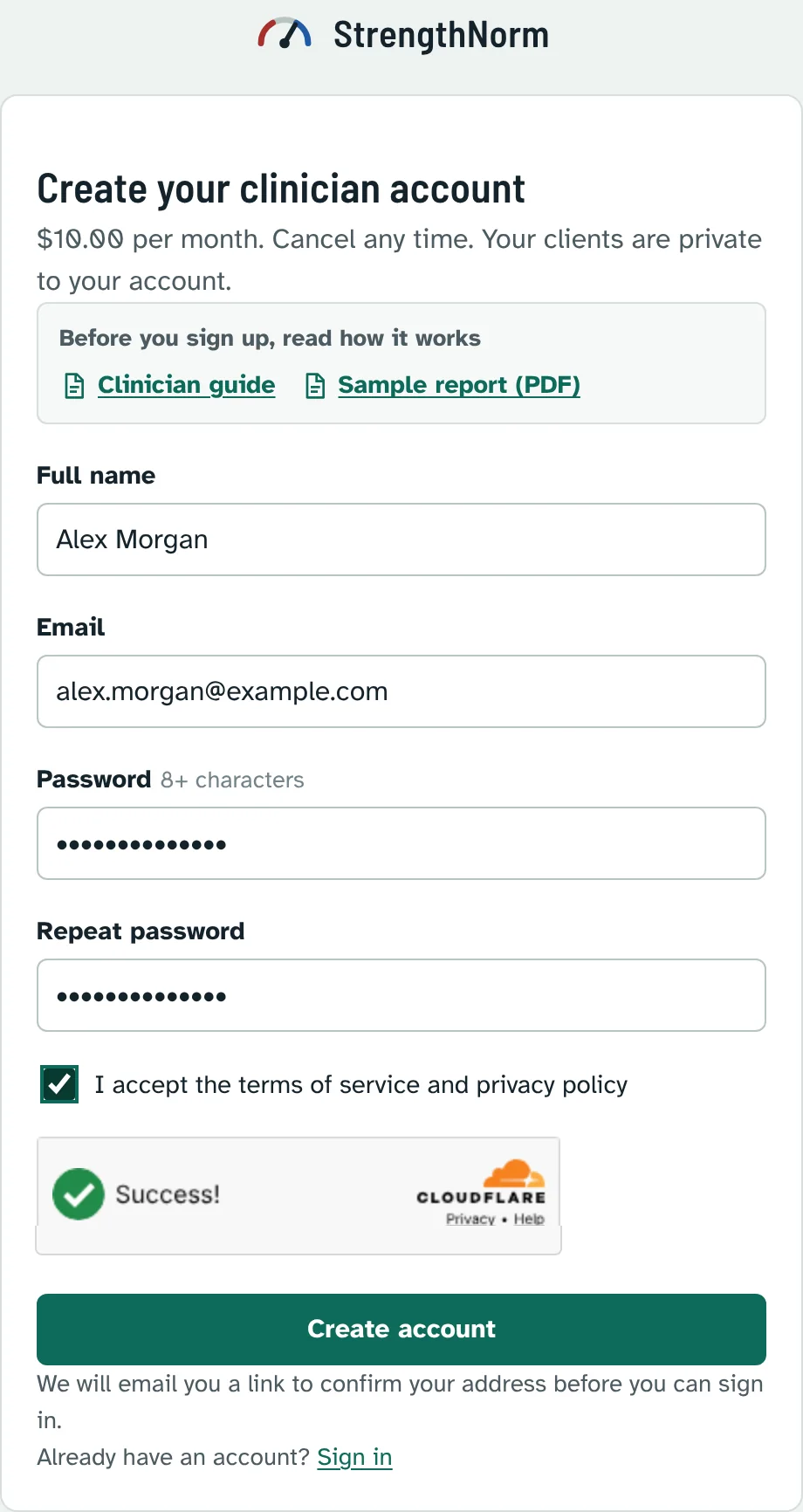
Open the sign-in page and choose Create an account (or go straight to the sign-up page).
Enter your full name as it should appear on reports and claims, your email, and a password of at least 8 characters, twice.
Tick I accept the terms of service and privacy policy.
If a security check box is shown, wait for it to show a green tick (it usually checks itself; sometimes it asks you to click it). It keeps automated sign-ups out.
Press Create account.
Confirm your email
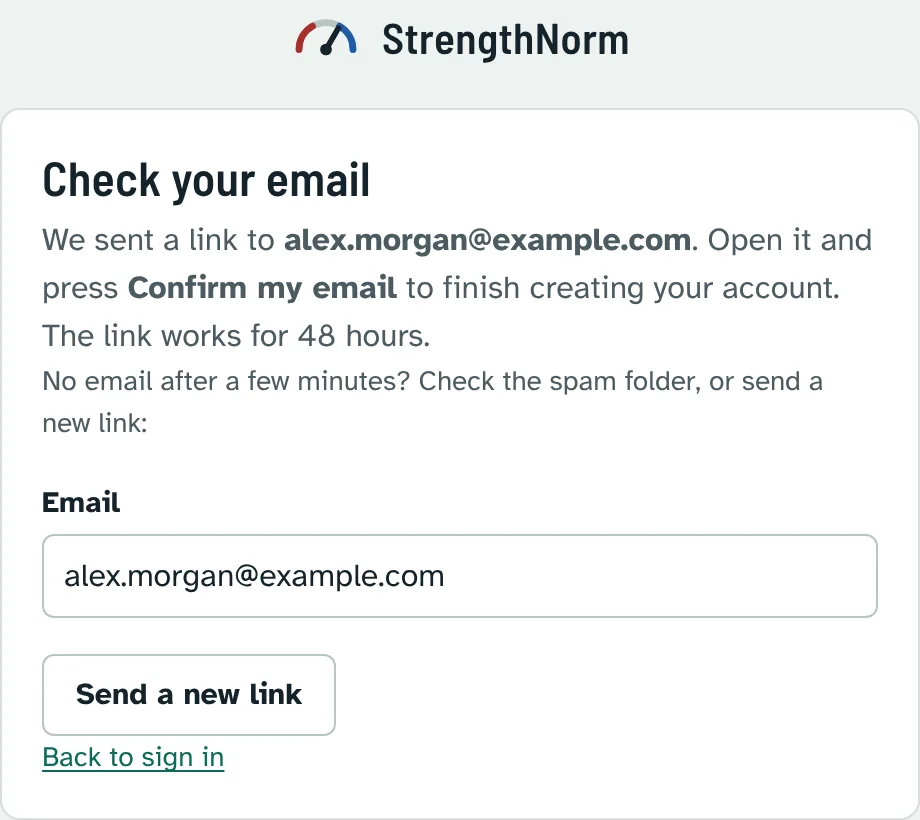
You will see Check your email. We send a message titled Confirm your StrengthNorm account to the address you entered. Your account works only after you confirm it, so nobody can sign up with your address.
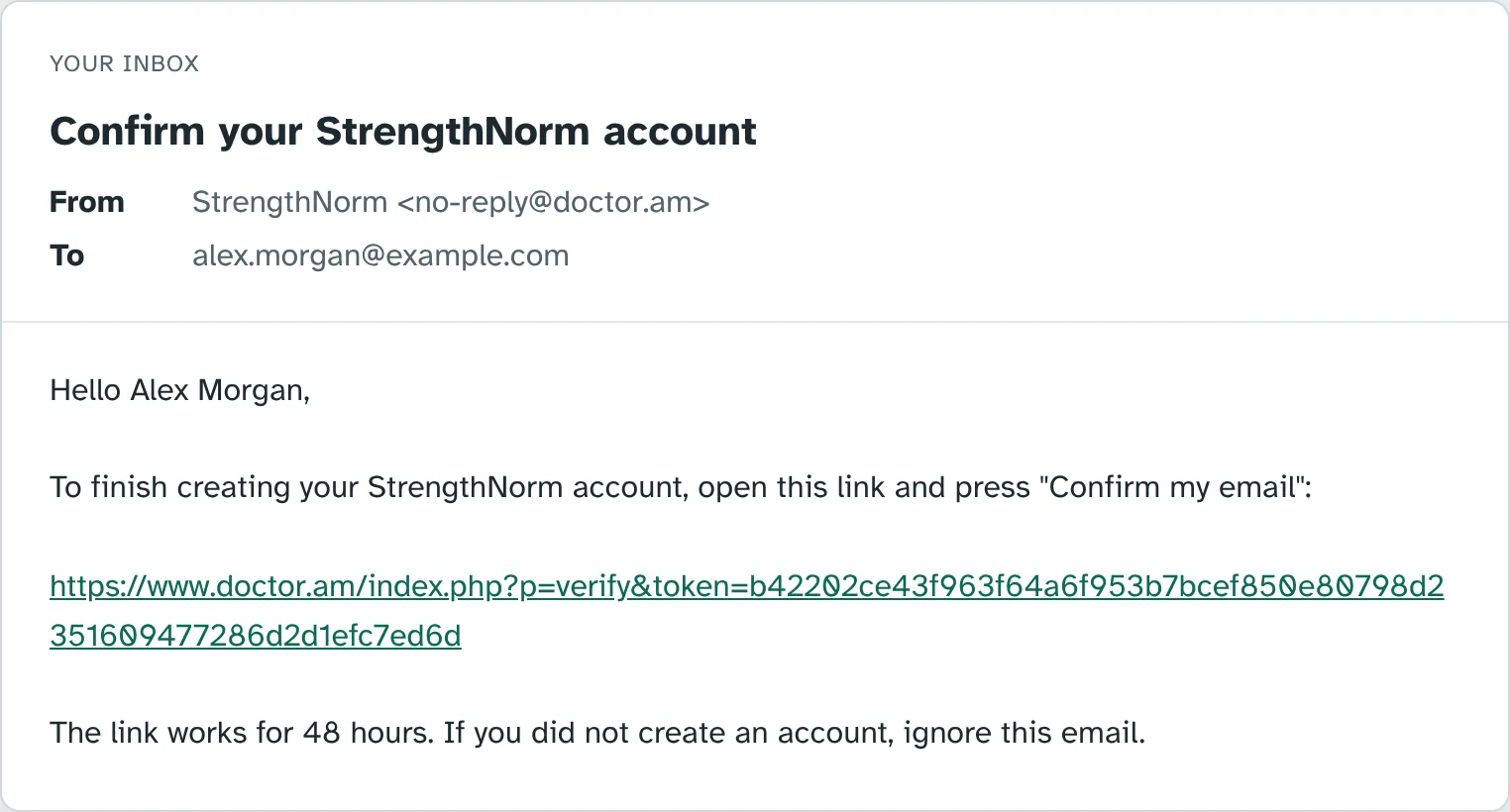
Open the email and click the link. The link works for 48 hours.
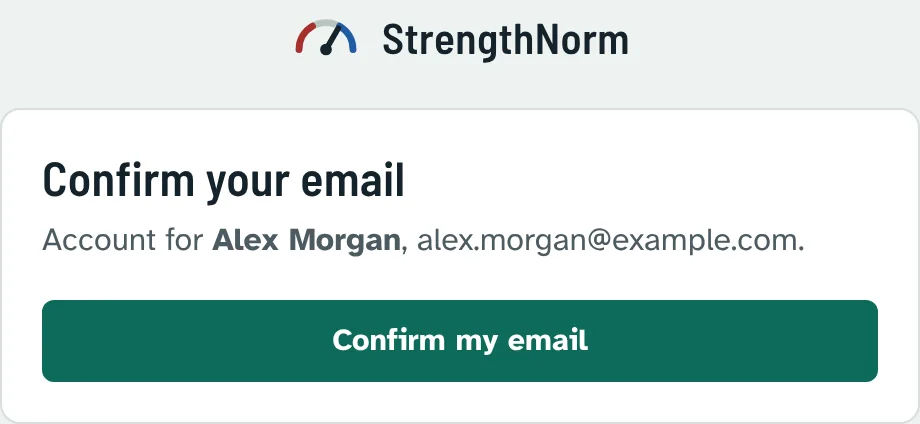
On the page that opens, press Confirm my email. You are signed in straight away.
3Start your subscription
After you confirm your email, the Subscription page opens. StrengthNorm costs $10.00 per month. It renews automatically each month and you can cancel at any time.
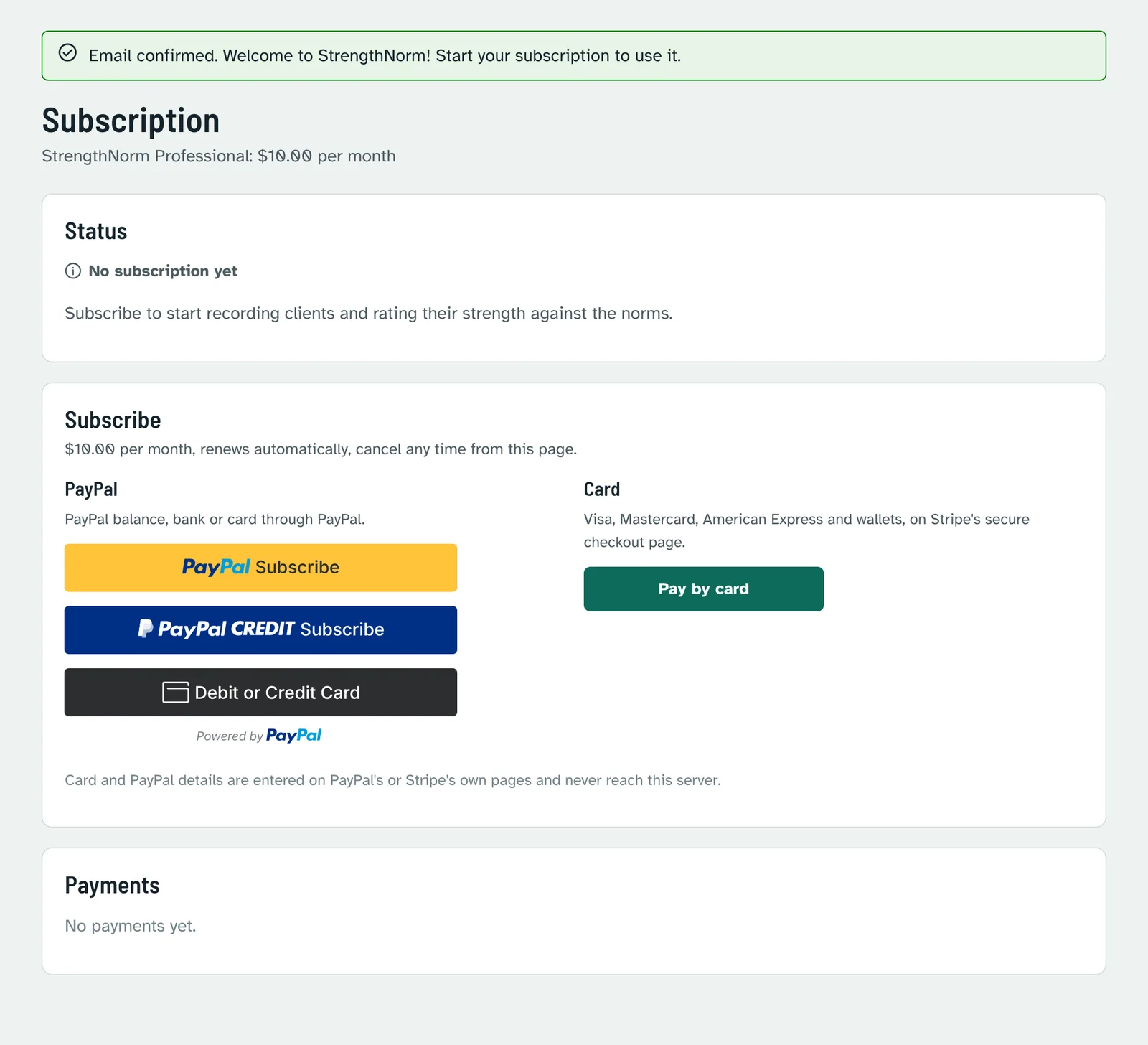
- PayPal: press the PayPal button and approve the subscription in the PayPal window (PayPal balance, bank account or card through PayPal).
- Card: press Pay by card. Stripe's secure checkout page opens; enter the card (Visa, Mastercard, American Express, or a wallet such as Apple Pay or Google Pay) and confirm. You return to StrengthNorm automatically.
When the payment is confirmed, the status shows Active with the renewal date, and the full menu appears.
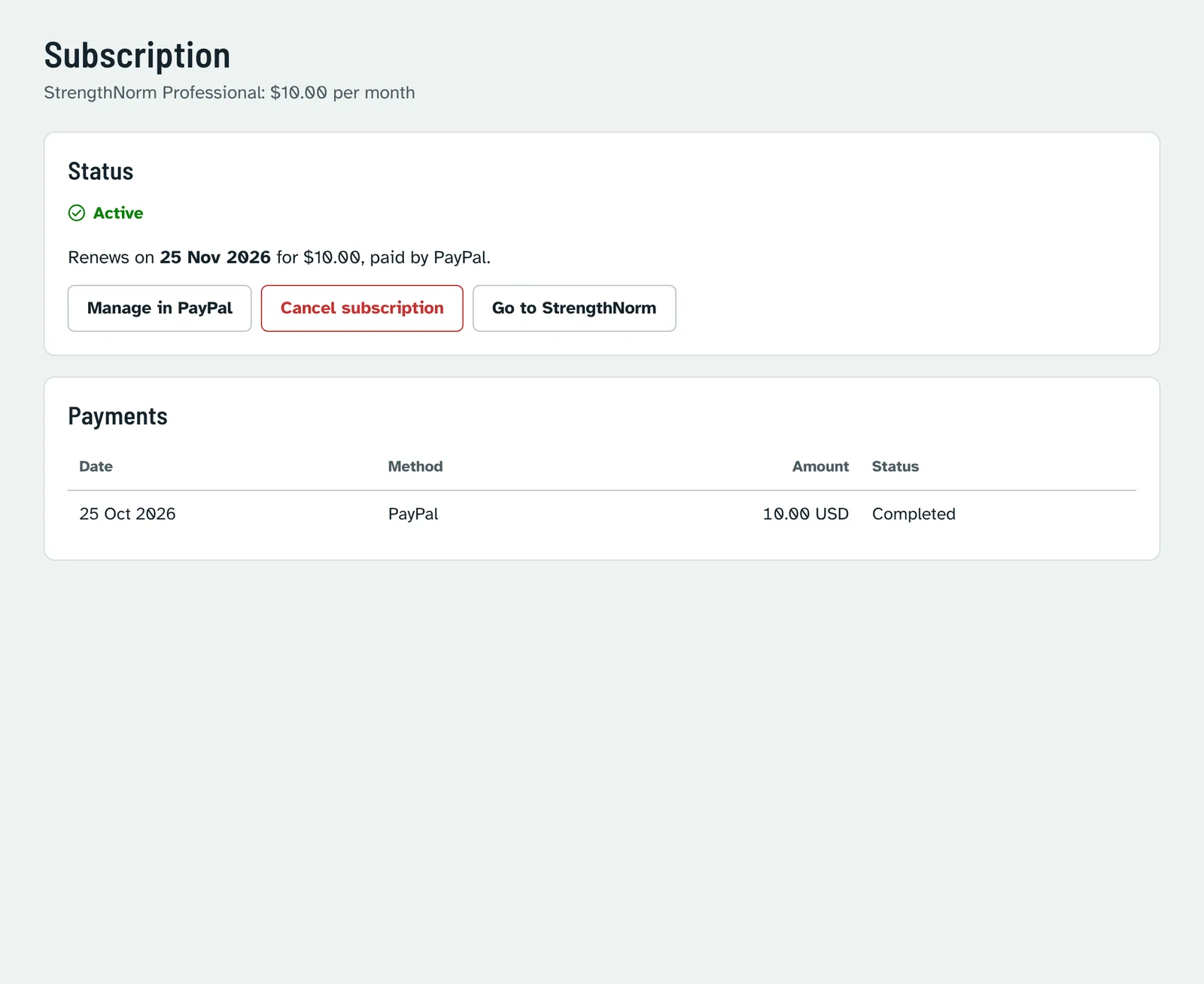
- Cancel: press Cancel subscription on this page. You will not be charged again and you keep access until the end of the month you paid for.
- Change card or download invoices (card payments) or Manage in PayPal (PayPal payments).
- If the subscription ends, your clients and reports are kept. Subscribe again to open them.
- The administrator can also give you free access; the page then shows Free access and no payment is needed.
4Find your way around
Sign in at any time with your email and password. The Overview shows your numbers, the latest assessments and the tests that have norms.
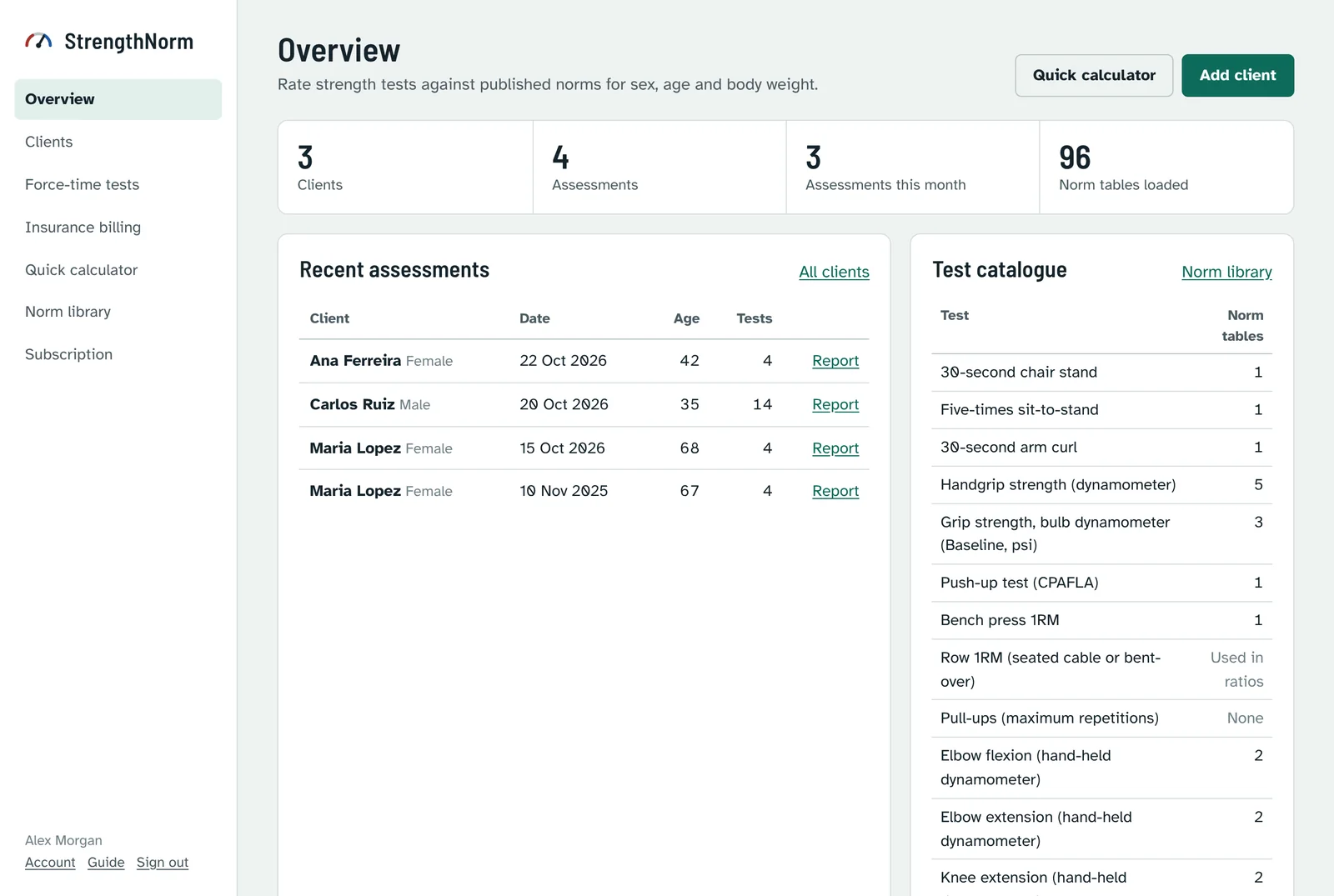
| Overview | Your counts, the latest assessments, the tests and how many norm tables each has. |
|---|---|
| Clients | Your client list, search, and each client's page with assessments, progress, force-time tests and billing. |
| Force-time tests | All force-time tests (for example from an ActivForce 2), newest first. |
| Insurance billing | Your superbills, filtered by status and payer, and the billing guide. |
| Quick calculator | Rate a result without creating a client. Nothing is saved. |
| Norm library | Every reference table, with its method, population and source. |
| Subscription | Status, payment method, payments, cancel. |
| Account | At the bottom of the menu: your name, sign-in email, billing profile and password. Guide opens this guide and Sign out ends your session. |
5Account and billing profile
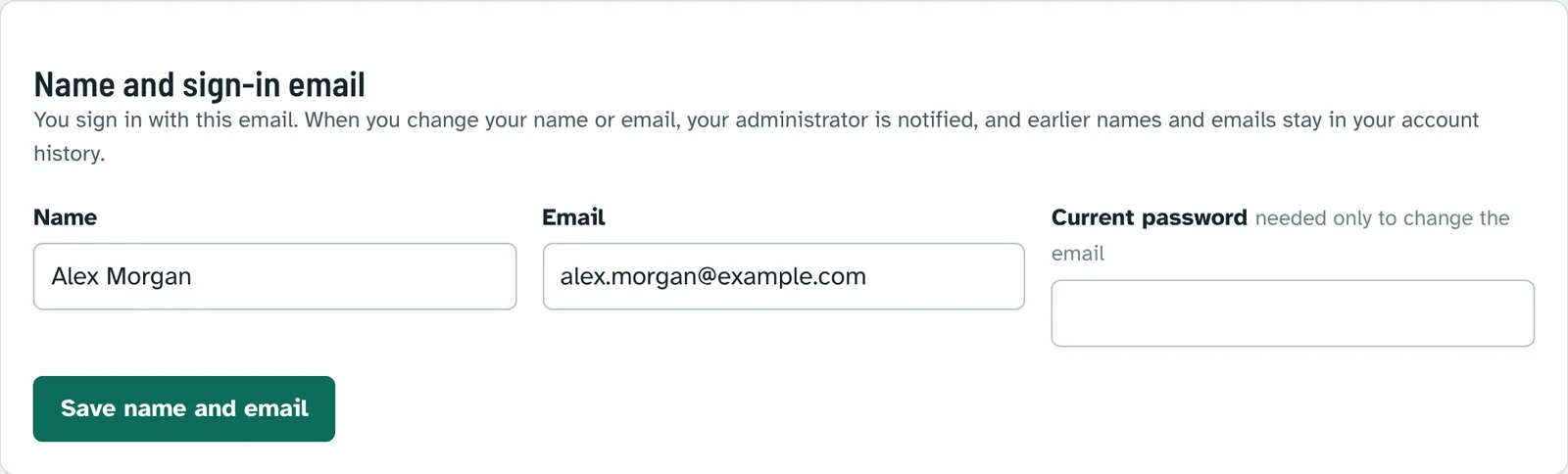
Name and sign-in email
Change your name or the email you sign in with under Account. To change the email, also type your current password. The administrator is notified, a notice goes to your previous email address, and earlier names and emails stay in your account history.
Billing profile
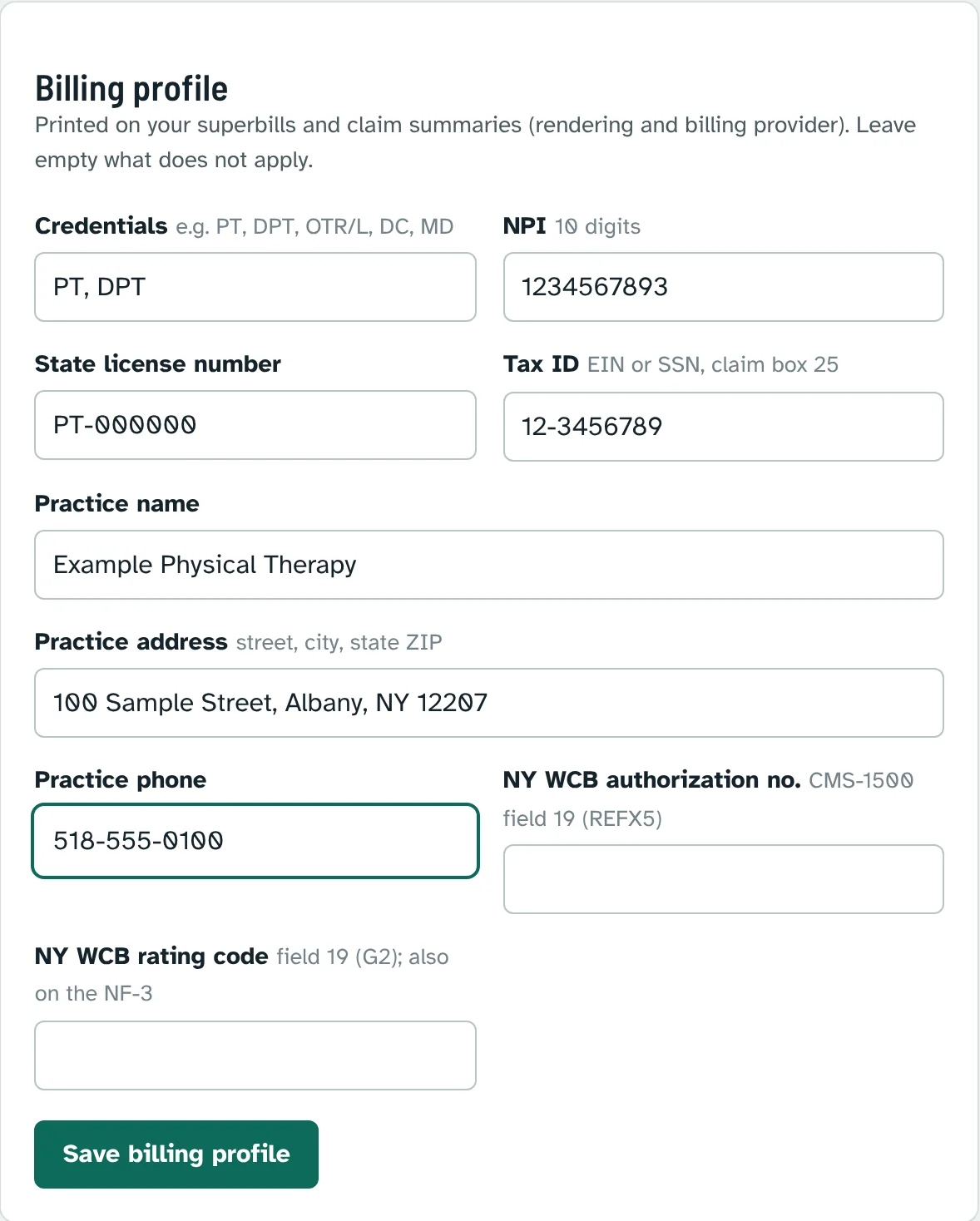
If you will print superbills, fill in the billing profile once. It prints on every superbill as the rendering and billing provider.
- Credentials (for example PT, DPT, OTR/L, DC, MD), NPI (10 digits; the number is checked), state license number and tax ID (EIN or SSN, claim box 25).
- Practice name, address and phone.
- New York workers' compensation and no-fault only: your WCB authorization number and rating code (CMS-1500 field 19).
Password
Change it under Change password on the same page. Forgot it? Ask the administrator to set a new one, then change it here.
6Add a client
Go to Clients and press Add client (or Add client on the Overview).
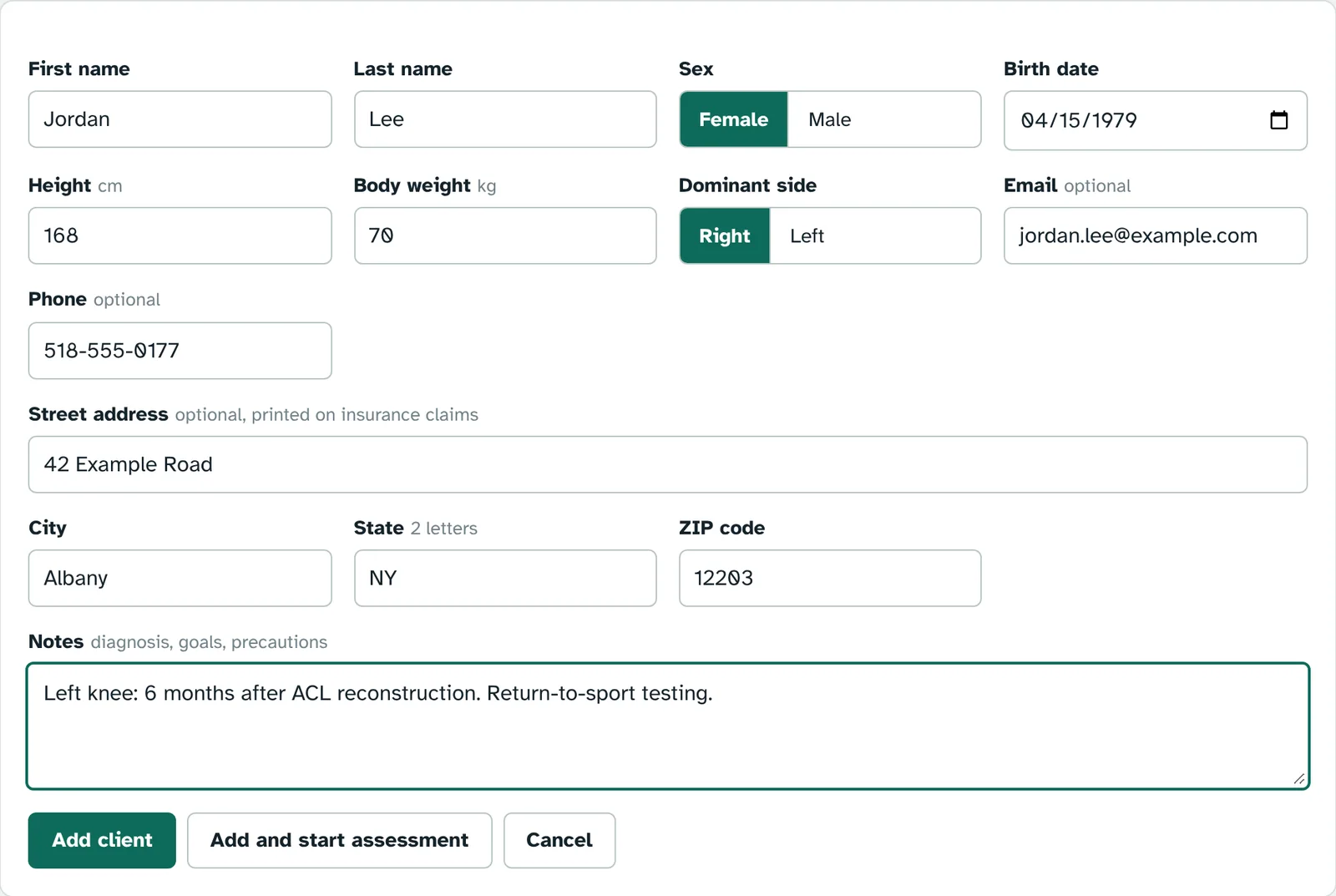
- Sex and birth date are required: every norm is split by sex and age. The age is calculated on the date of each assessment.
- Height and body weight are used by tables expressed per kilogram of body weight, by BMI cut-offs and by the reference equations for dynamometry. You can enter a new weight with each assessment.
- Dominant side chooses between the dominant and non-dominant norms where a study reports them separately.
- Address is optional and only printed on insurance claims. Notes are for diagnosis, goals and precautions.
Press Add and start assessment to go straight to the test entry, or Add client to save only.
The client's page
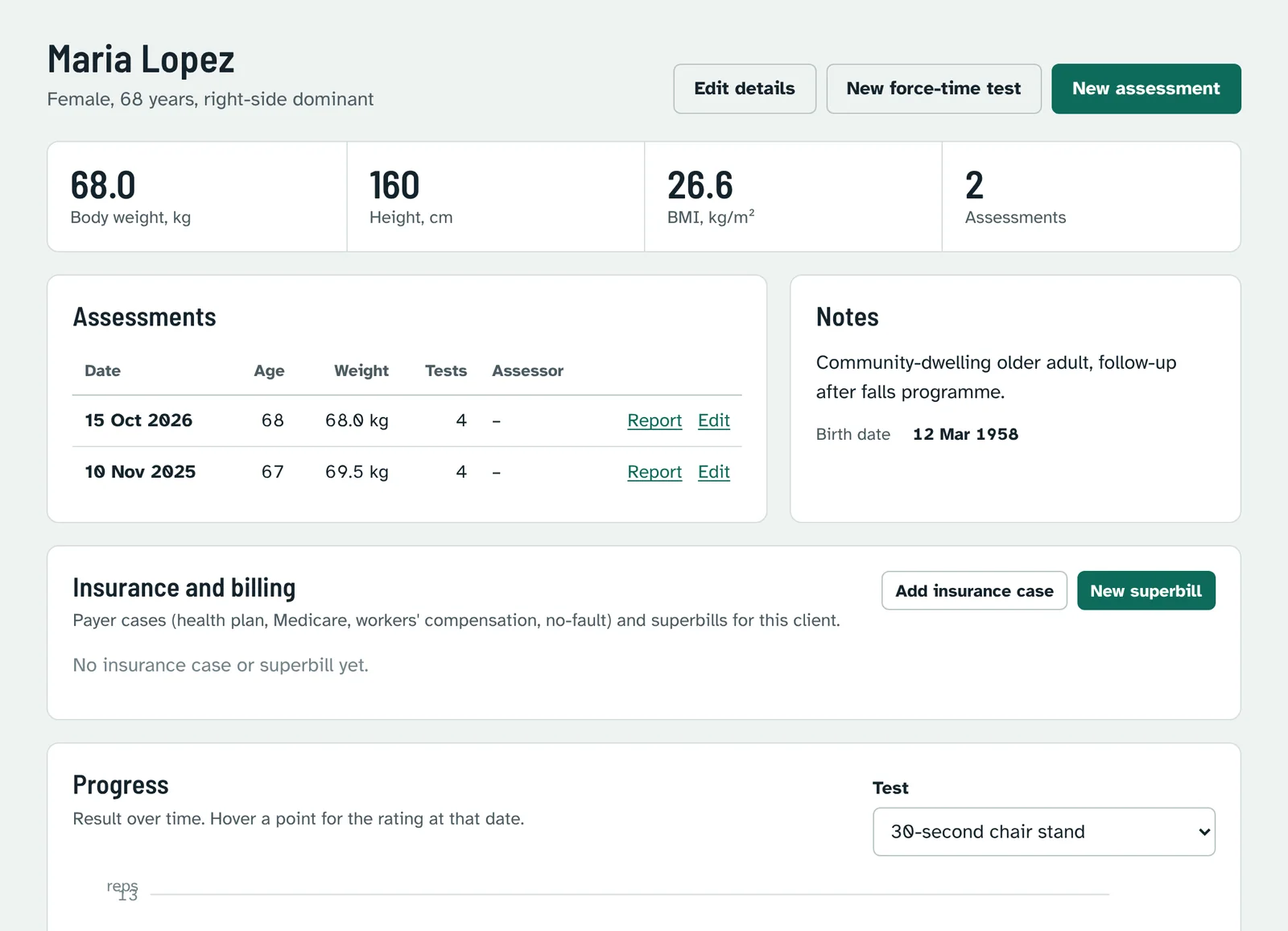
Open a client from the list. Their page holds the body measures, all assessments (with Report and Edit), notes, force-time tests, insurance cases and superbills, and a progress chart. From here start a New assessment or a New force-time test.
To delete a client and all their assessments, open Edit details and use Delete client at the bottom.
7Record an assessment
On the client's page press New assessment.
Check the assessment date and the body weight on the day (and height if it changed). Add session notes if you wish.
Choose a battery to show its tests: Older adult functional strength, Push-pull strength (gym), Muscle testing (hand-held dynamometry), Isometric push-pull and rotation (force gauge), Isometric legs, knees and ankles (force gauge), Sarcopenia strength screen, Grip (dynamometer and bulb), the three range of motion batteries (see below), or All tests. You can switch on several.
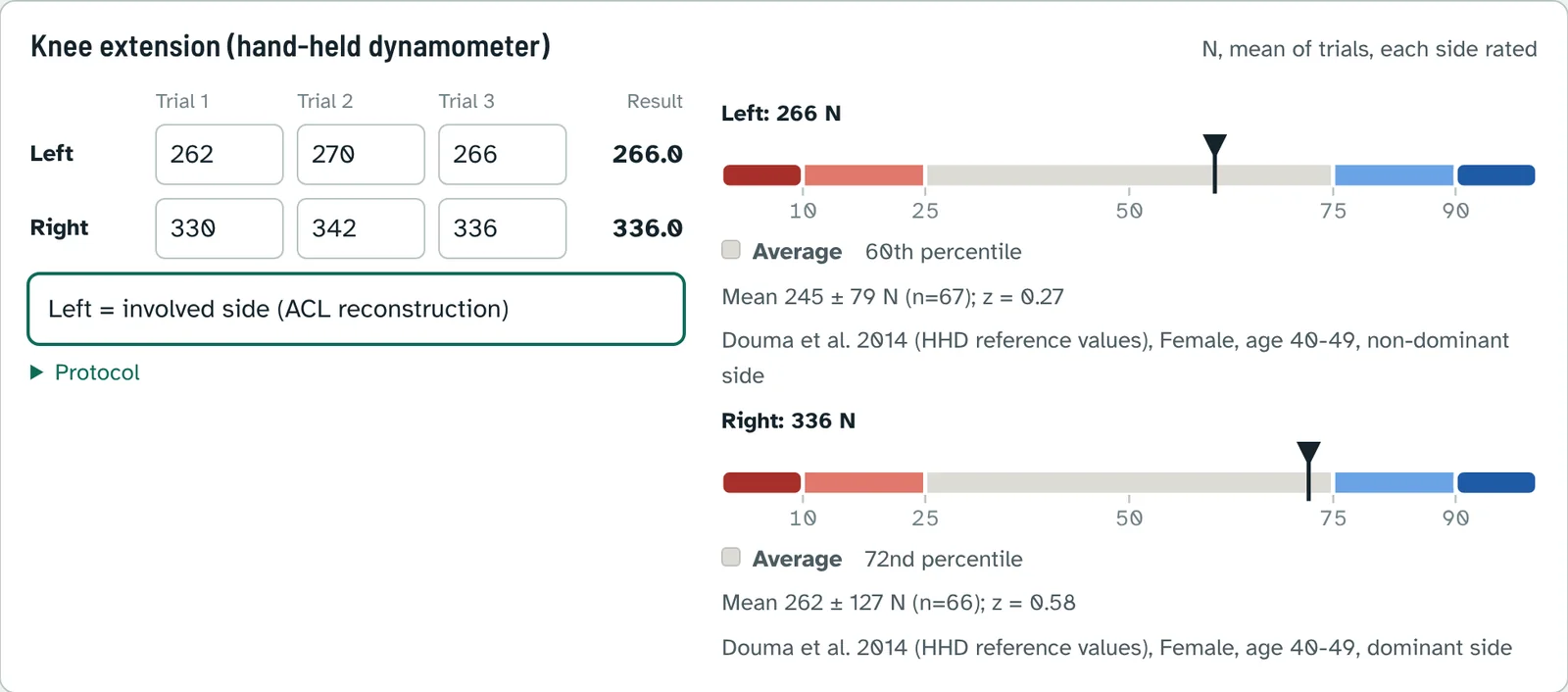
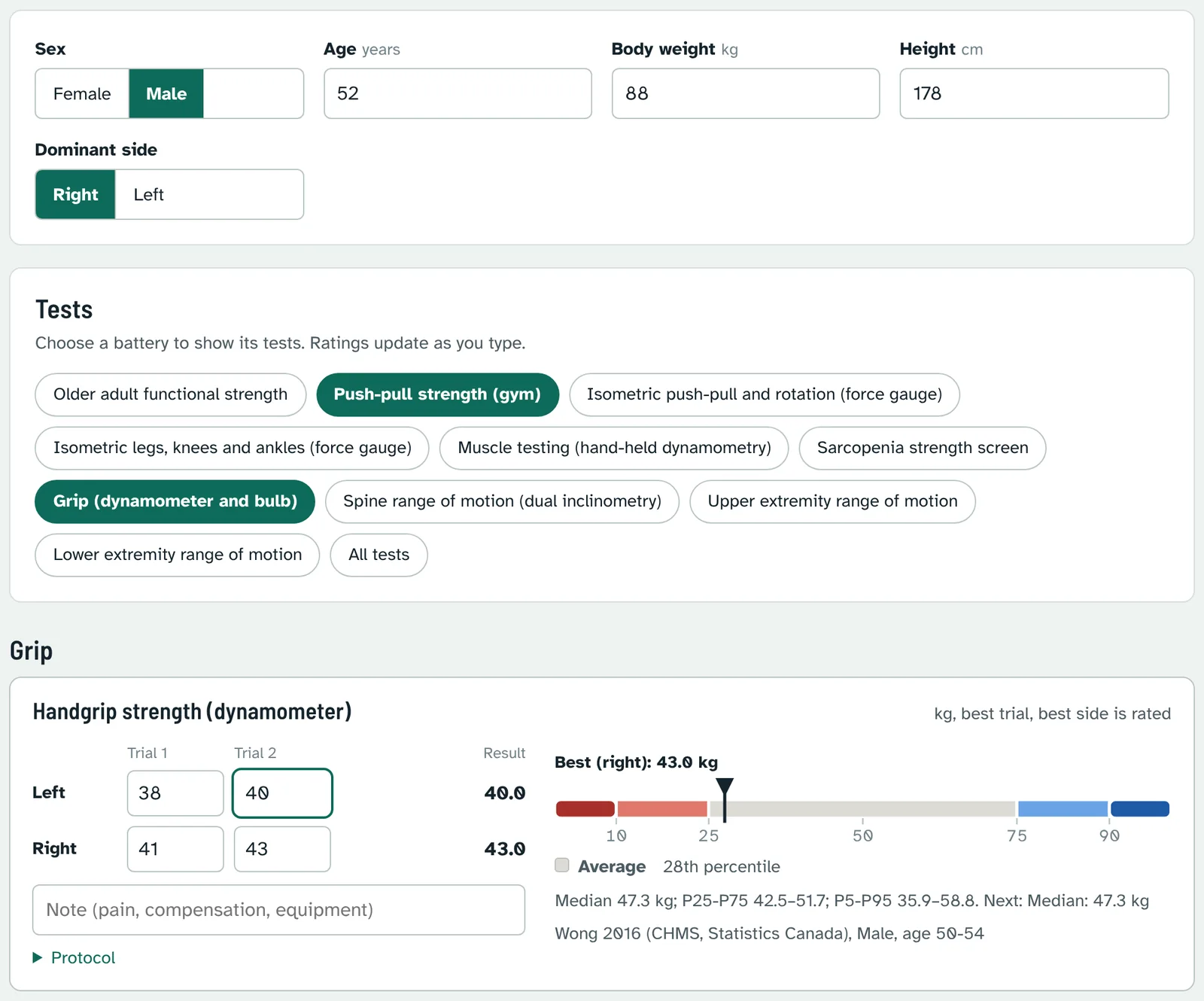
Type the result of each trial. The line under the test name says what is rated: for example best trial, best side is rated for handgrip, or mean of trials, each side rated for dynamometry. The rating appears as you type.
Press Save and view report.
- 1RM lifts: type the 1RM, or a load and the repetitions (up to 10) and press Use estimate (average of the Epley and Brzycki formulas).
- Note under each test for pain, compensation or equipment. It prints on the report.
- Protocol opens the test procedure the norms were collected with. Follow it: norms only apply to the same method.
- Tests without a loaded norm can still be recorded; they are used in ratios and progress charts.
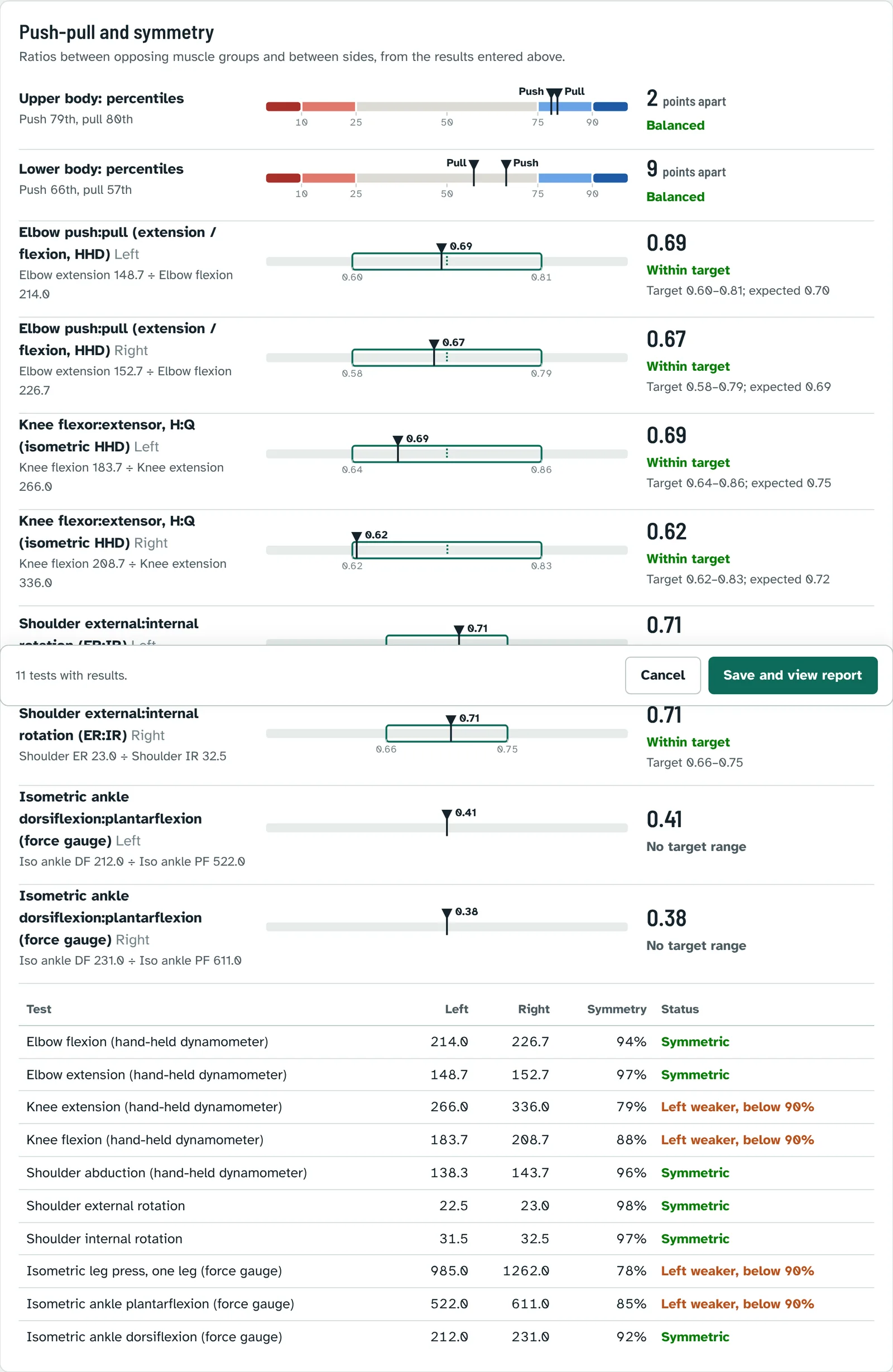
Below the tests, Push-pull and symmetry updates as you go, so you see the ratios and side differences before you save.
8Read and print the report
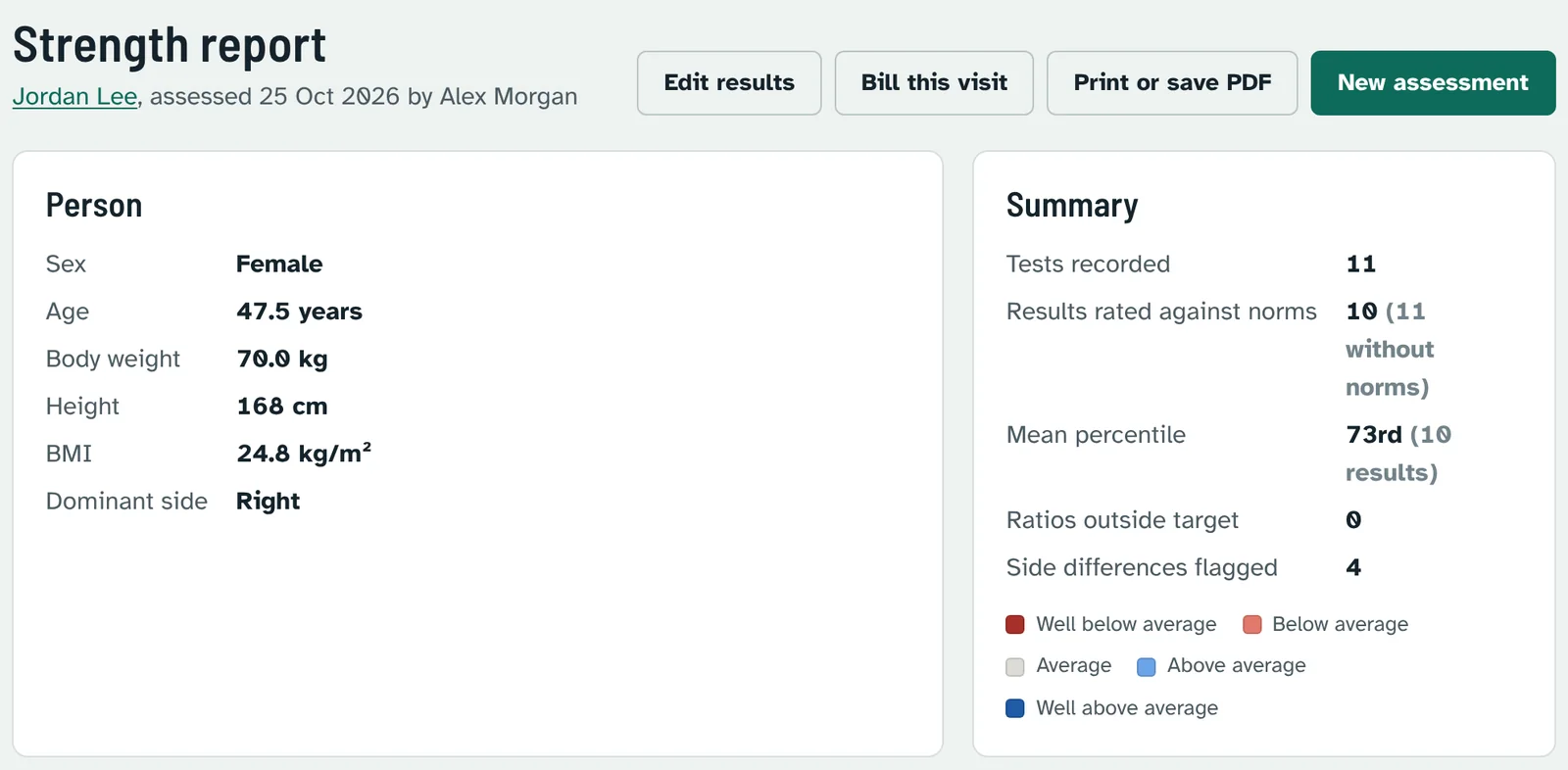
Every saved assessment has a strength report. Open it from the client's page or the Overview (Report).
How to read a result
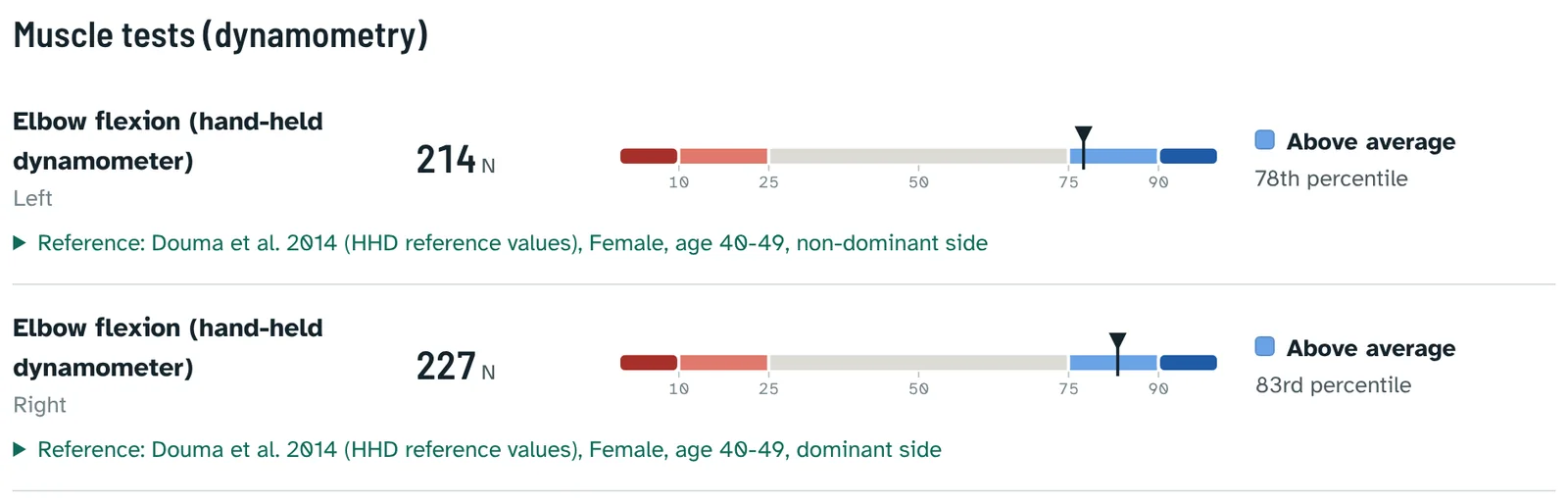
- The scale runs from well below average (red) through average (grey) to well above average (blue); the marker is your client.
- Next to it: the rating and, depending on the table, the percentile, the % of predicted value (reference equations) or a clinical cut-off such as low grip strength for sarcopenia.
- Under it: the reference used, with the sex, age group and side. All sources are listed with links at the end of the report.
Push-pull balance
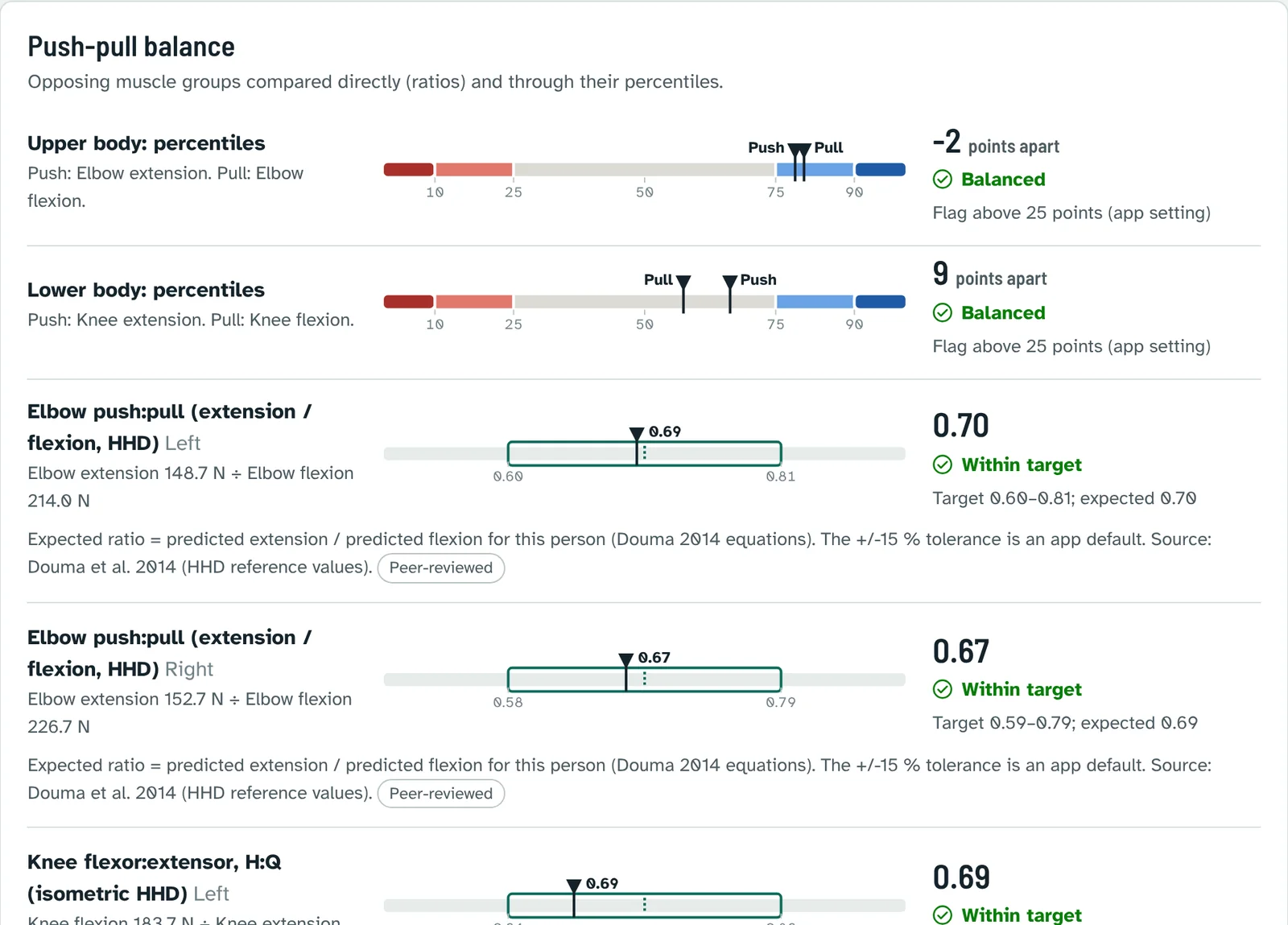
Opposing muscle groups are compared in two ways: as a direct ratio with its target range (for example knee flexors to extensors, or shoulder external to internal rotation), and as the gap between their percentiles, flagged above 25 points.
Isometric strength (force gauge)
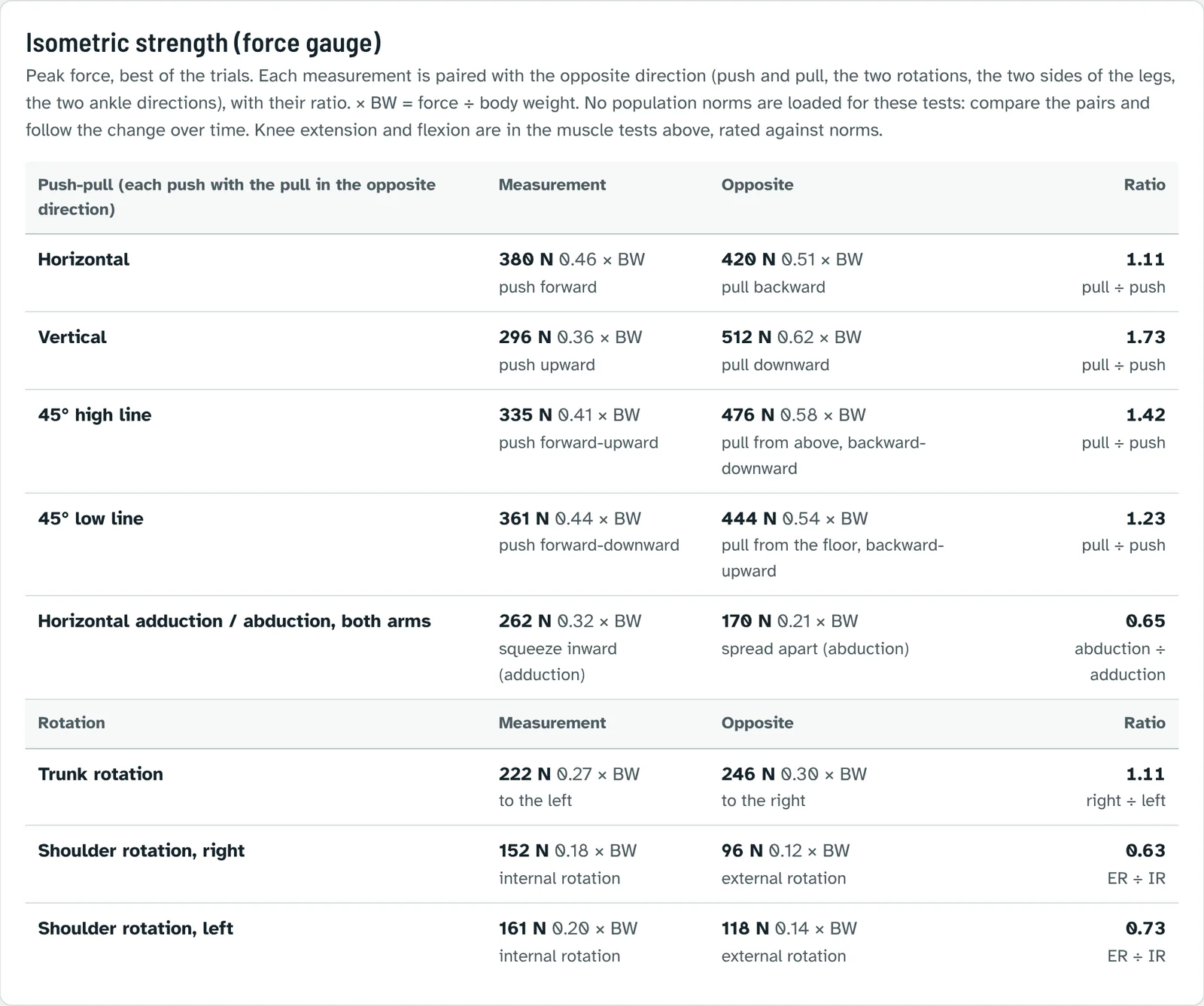
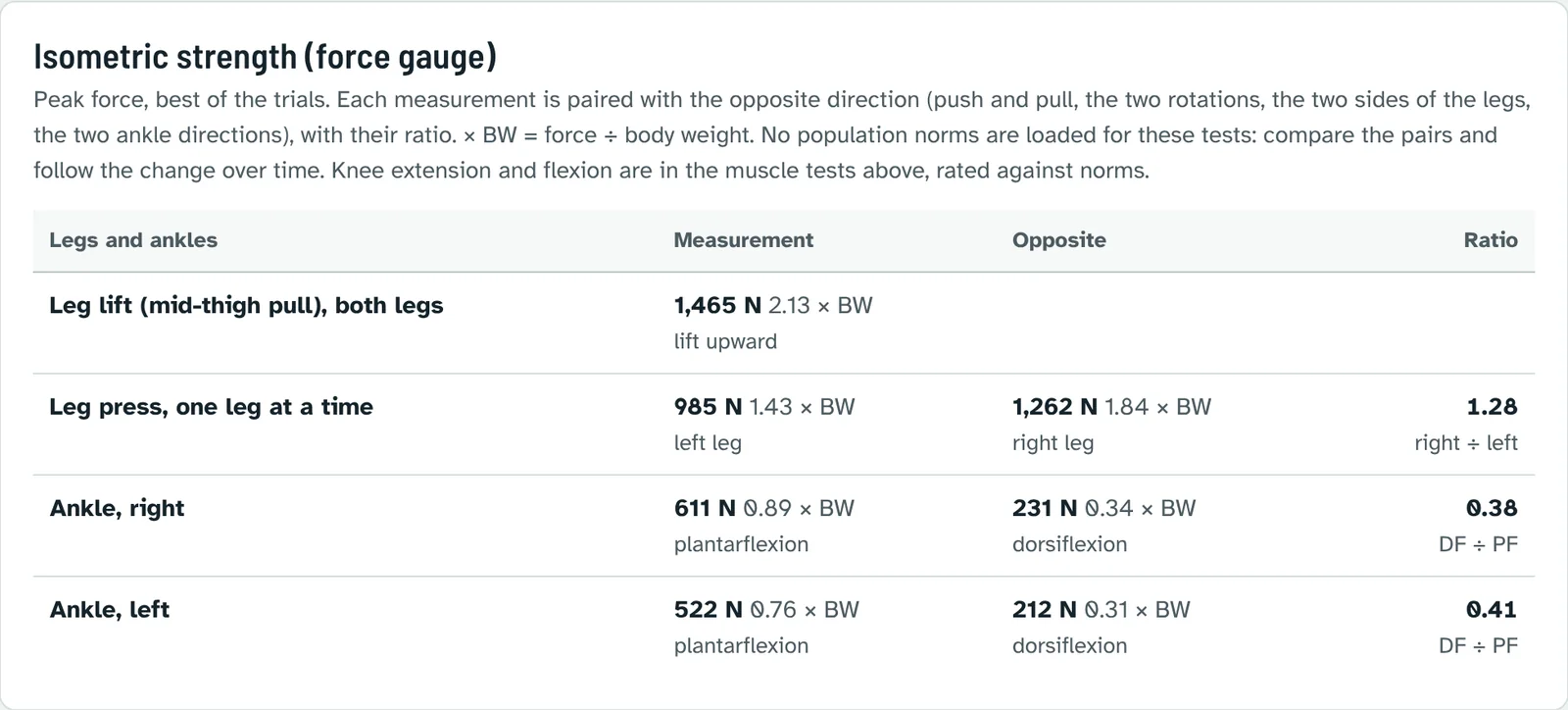
The Isometric push-pull and rotation (force gauge) battery measures pushing and pulling in five directions: horizontal, vertical, a 45° high line (push forward-upward, pull from above backward-downward), a 45° low line (push forward-downward, pull from the floor backward-upward) and bilateral horizontal adduction and abduction; and rotation: trunk rotation to each side and shoulder external and internal rotation of each arm. The Isometric legs, knees and ankles (force gauge) battery adds the leg lift (mid-thigh pull, both legs), the leg press of each leg, ankle plantarflexion and dorsiflexion and ankle inversion and eversion; knee extension and flexion are the hand-held dynamometer tests, rated against norms. The report pairs each measurement with the opposite direction (push and pull, the two rotations, left and right leg, the two ankle directions), in newtons and × body weight, with the ratio and the change since the last visit. Only the tests you measured appear. No population norms exist for most of these directional forces, so they are compared with each other and over time; the shoulder external:internal rotation ratio is checked against its published target range.
Left-right symmetry
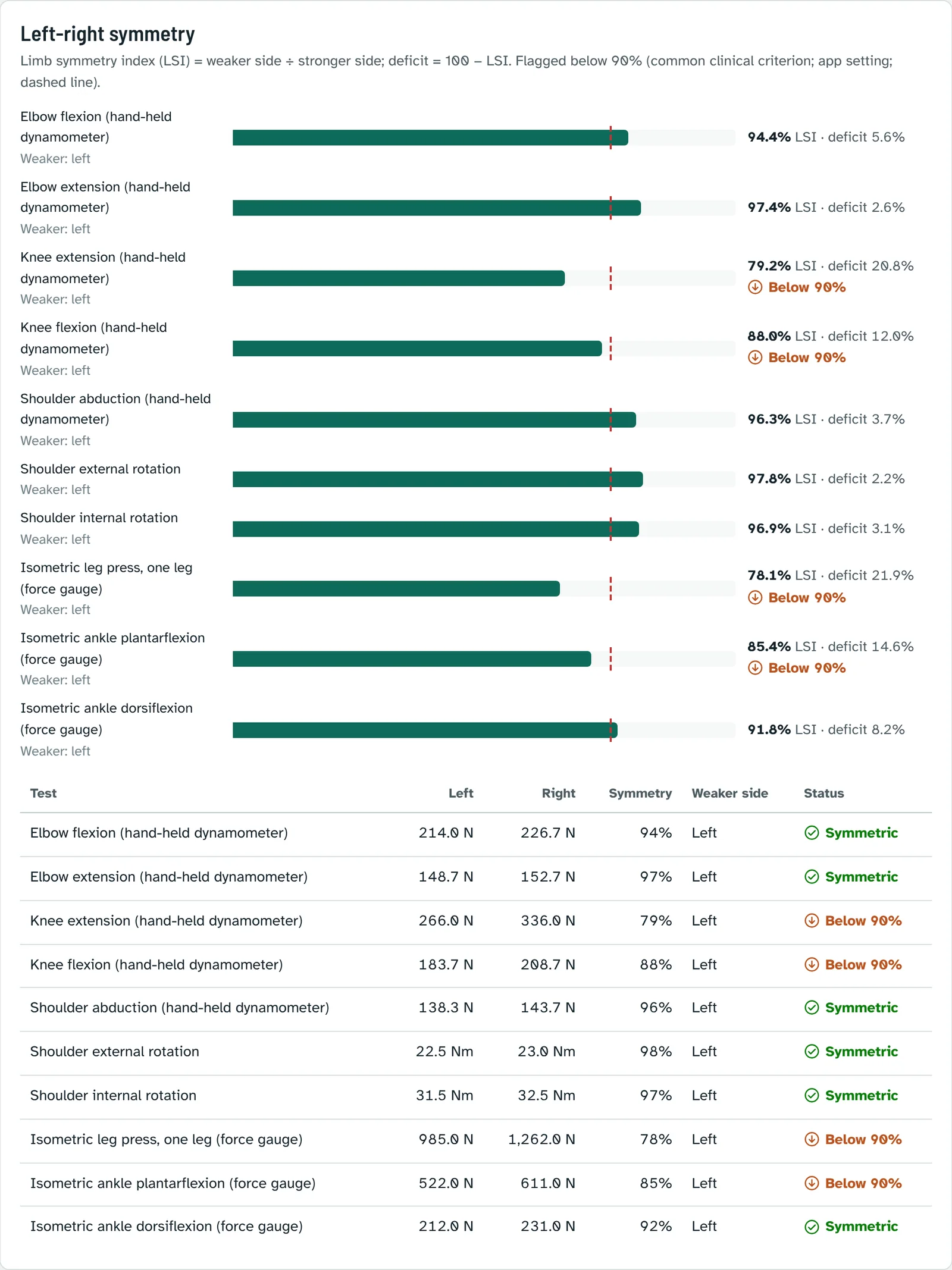
The limb symmetry index (LSI) is the weaker side divided by the stronger side; the deficit is 100 minus the LSI. Results below 90% are flagged.
Print, save as PDF or share
Press Print or save PDF. Your browser's print window opens; choose your printer, or Save as PDF to email it or attach it to your notes. The printout is laid out for paper, without menus.
9Range of motion (inclinometry)
Range of motion is recorded in the same assessment as strength, so one report and one superbill cover the visit. Physical therapists, chiropractors and orthopedic physicians use it for evaluations, progress notes, impairment and permanency reports.
In the assessment, choose a range of motion battery: Spine range of motion (dual inclinometry), Upper extremity range of motion or Lower extremity range of motion.
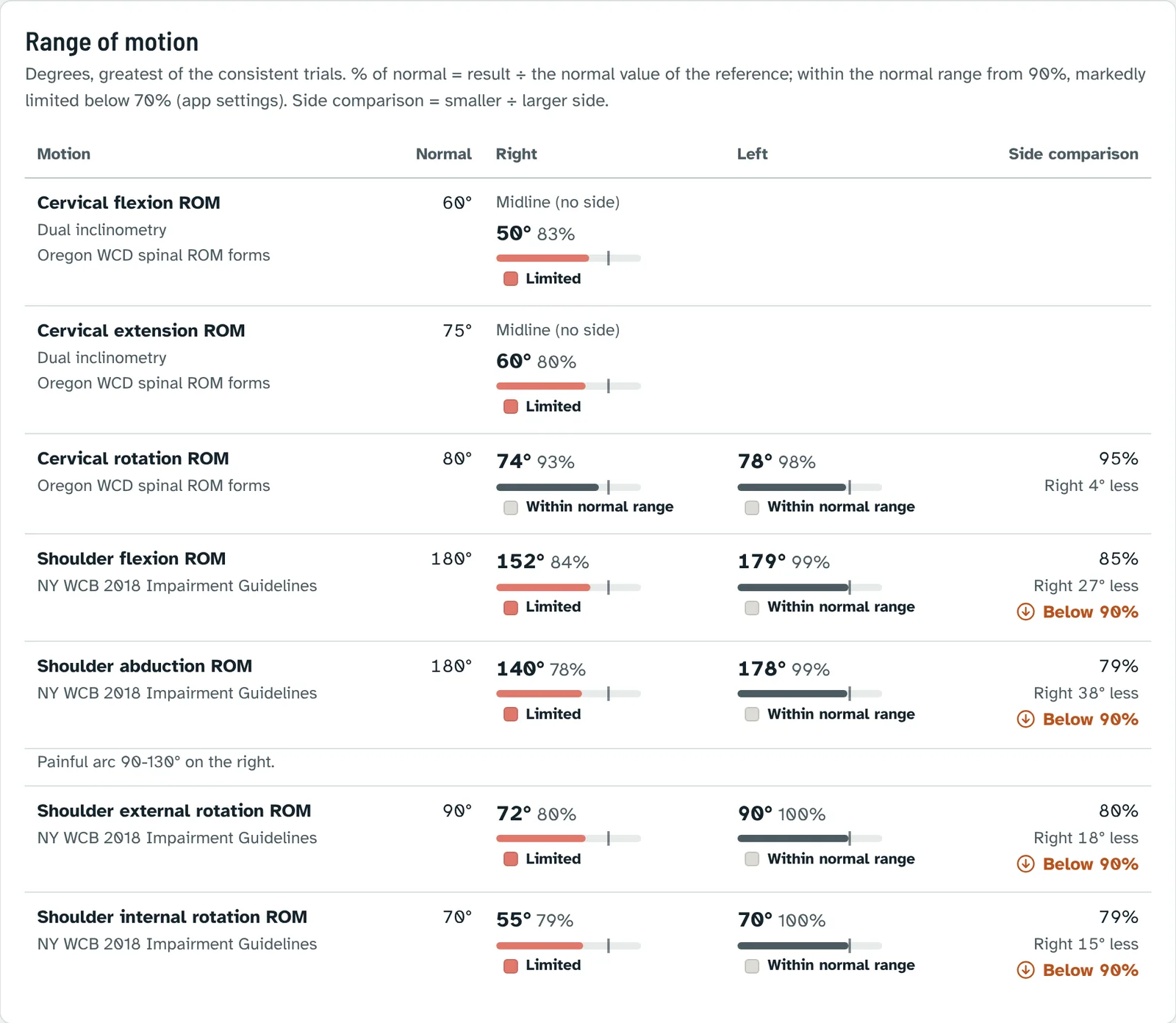
Measure each motion up to three times per side and type the degrees. The greatest of the trials is rated.
For the spine, use the dual inclinometer helper: type the upper and the lower reading (for the lumbar spine, T12 and sacrum; thoracic, T1 and T12; cervical, head and T1) and press Use as next trial. The true spinal motion is the difference.
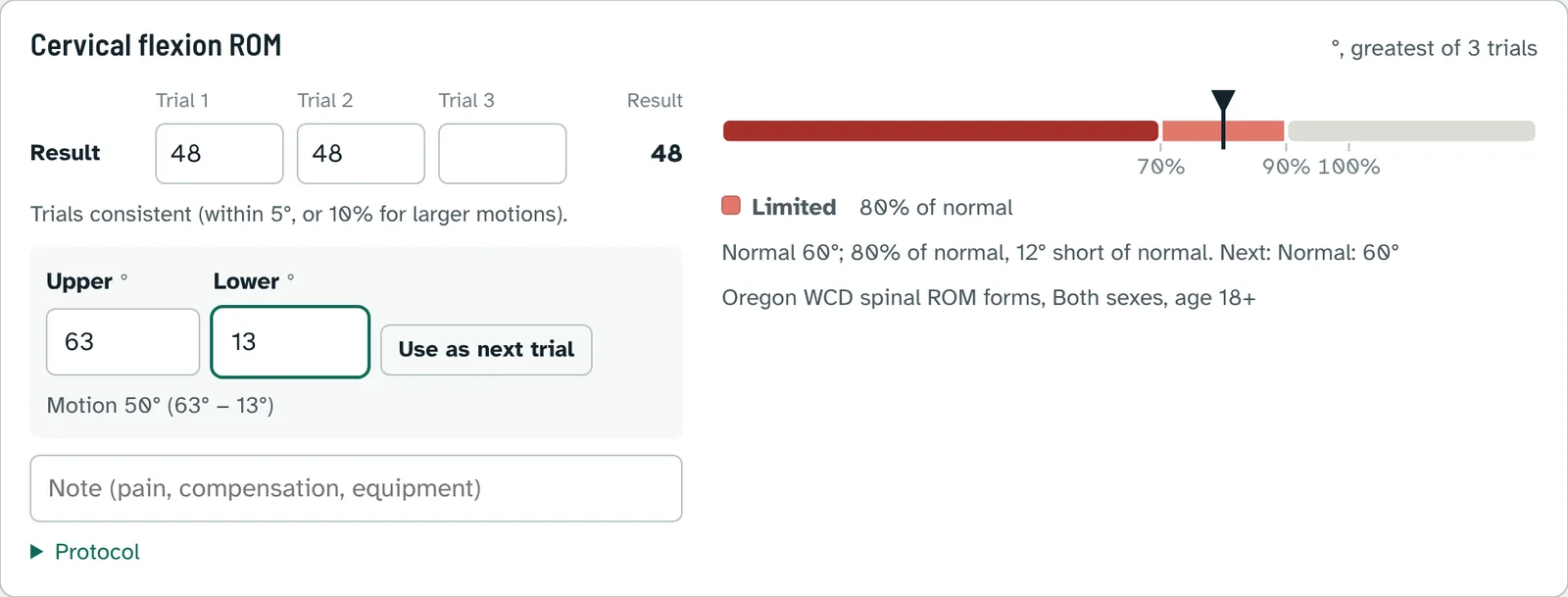
- Consistency check: repeated measurements should agree within 5°, or within 10% for larger motions (AMA Guides). If they do not, a warning asks you to repeat the measurement.
- Rating: each result is shown as a percentage of the normal value of the reference (named under the result): within the normal range from 90%, limited below that, markedly limited below 70% (app settings). The main reference is the New York WCB 2018 Impairment Guidelines for the limbs and the AMA Guides 5th edition and Oregon workers' compensation values for the spine; the AMA Guides, AAOS and the CDC normal joint motion study (means for age and sex) are listed under each result as well.
- Side comparison: the smaller side divided by the larger side, flagged below 90%.
On the report, range of motion has its own table: the normal value, right and left in degrees with % of normal, the side comparison, the change since the last assessment, and any trial that needs repeating.
Billing range of motion
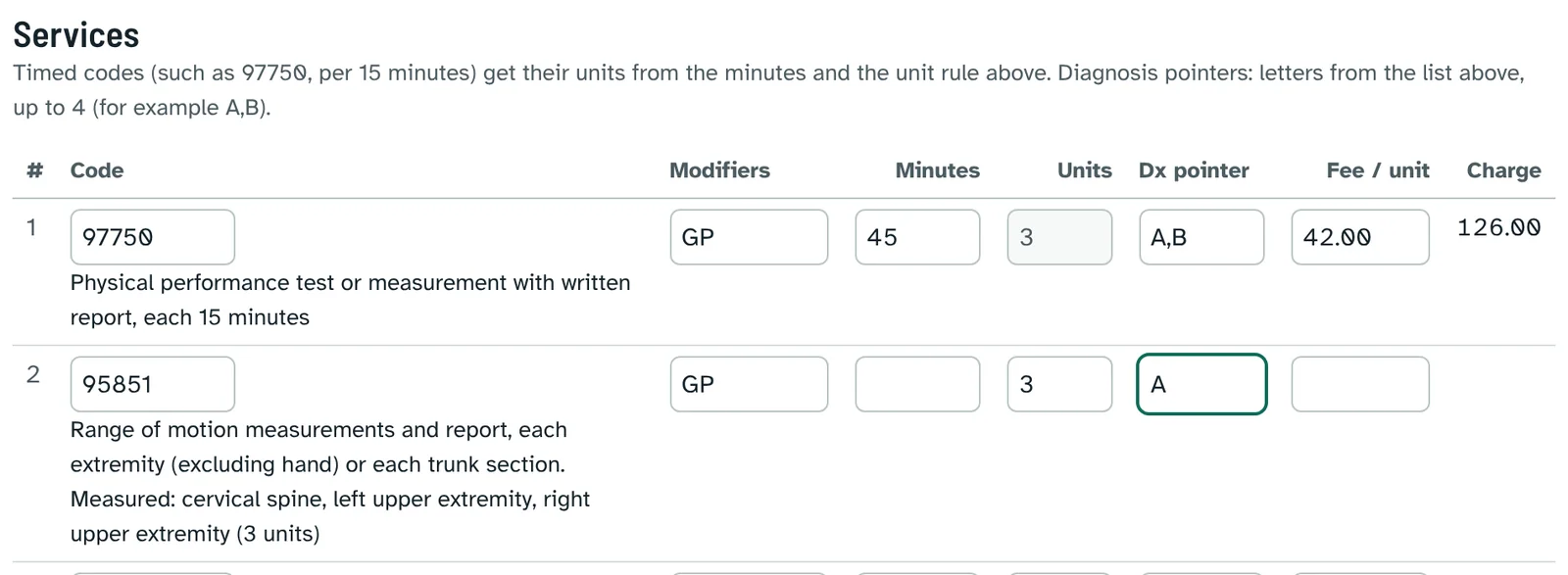
Range of motion is billed with 95851, one unit per extremity (excluding the hand) or spine section measured, or 95852 for the hand. When the superbill is linked to the assessment, StrengthNorm counts the regions measured and fills the units of 95851; the range of motion table prints with the superbill as its written report.
10Follow progress
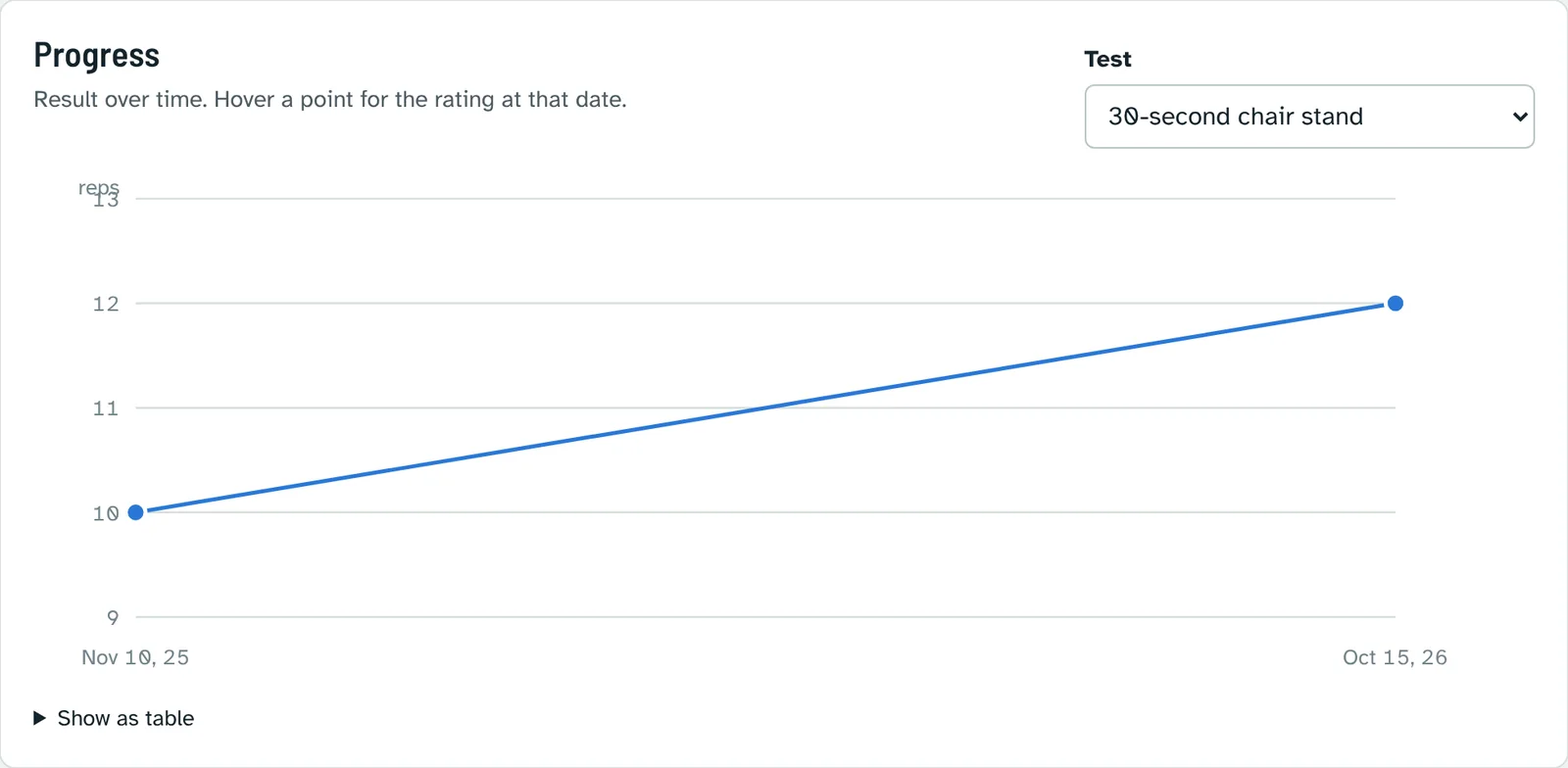
After a second assessment, the client's page draws a progress chart for each test. Choose the test in the list; hover over a point for the rating on that date, or open Show as table.
11Quick calculator
The Quick calculator rates results without creating a client, for example during a screening or to answer a question. Enter sex, age, weight, height and dominant side, choose a battery and type the results. Nothing on this page is saved.
12Norm library
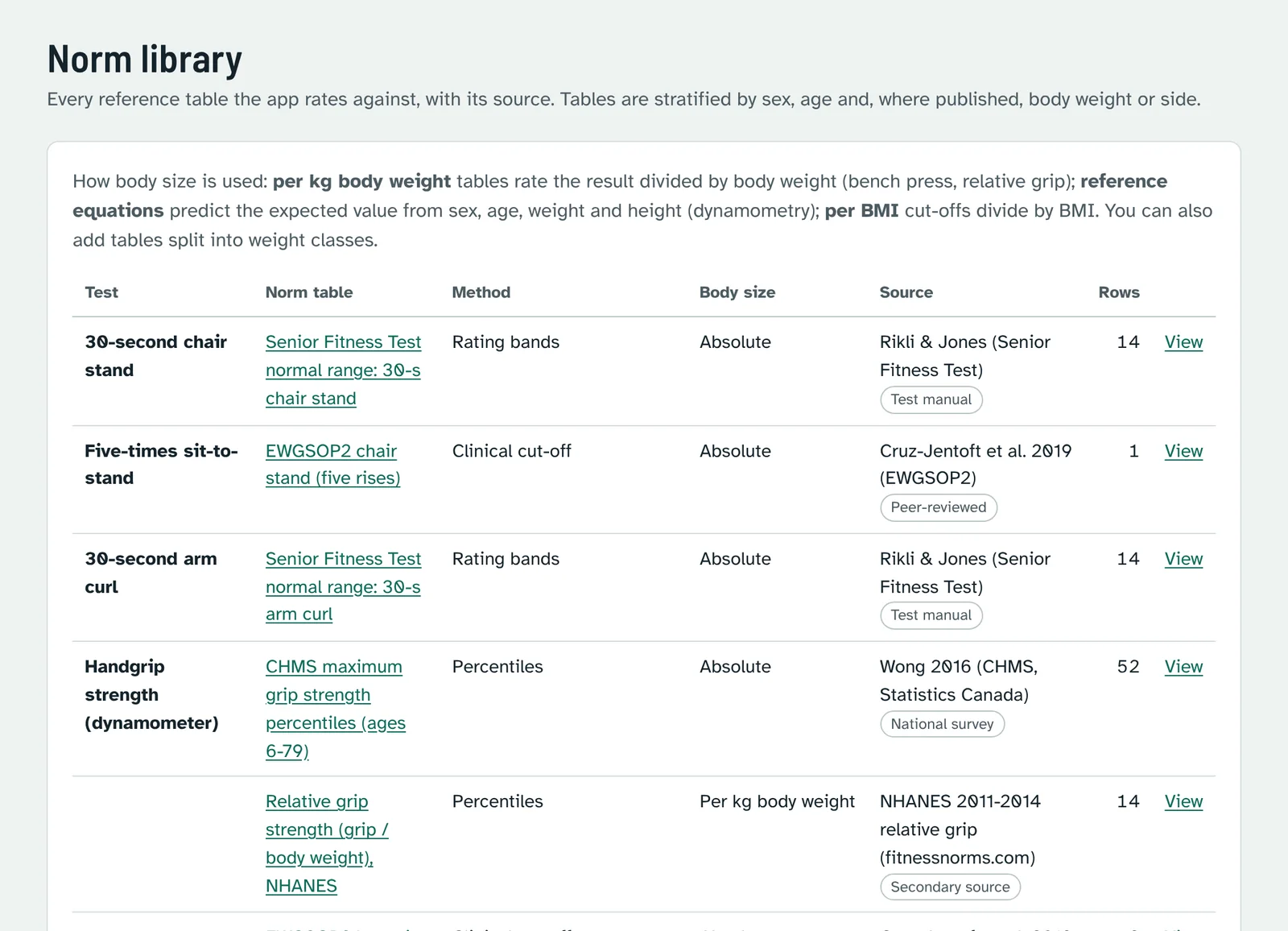
The Norm library lists every reference table: the test, the method (percentiles, mean and standard deviation, reference equation, rating bands or clinical cut-off), how body size is used, the source and the number of age and sex groups. Open View to see the full table and the study it comes from.
13Force-time tests
Use force-time tests for isometric tests on a digital dynamometer that records force over time, such as the ActivForce 2. You record up to four trials for the right, left and both sides; StrengthNorm calculates the averages, the trial-to-trial variation, limb symmetry for every metric and draws the charts.
1. Create the test
On the client's page press New force-time test.
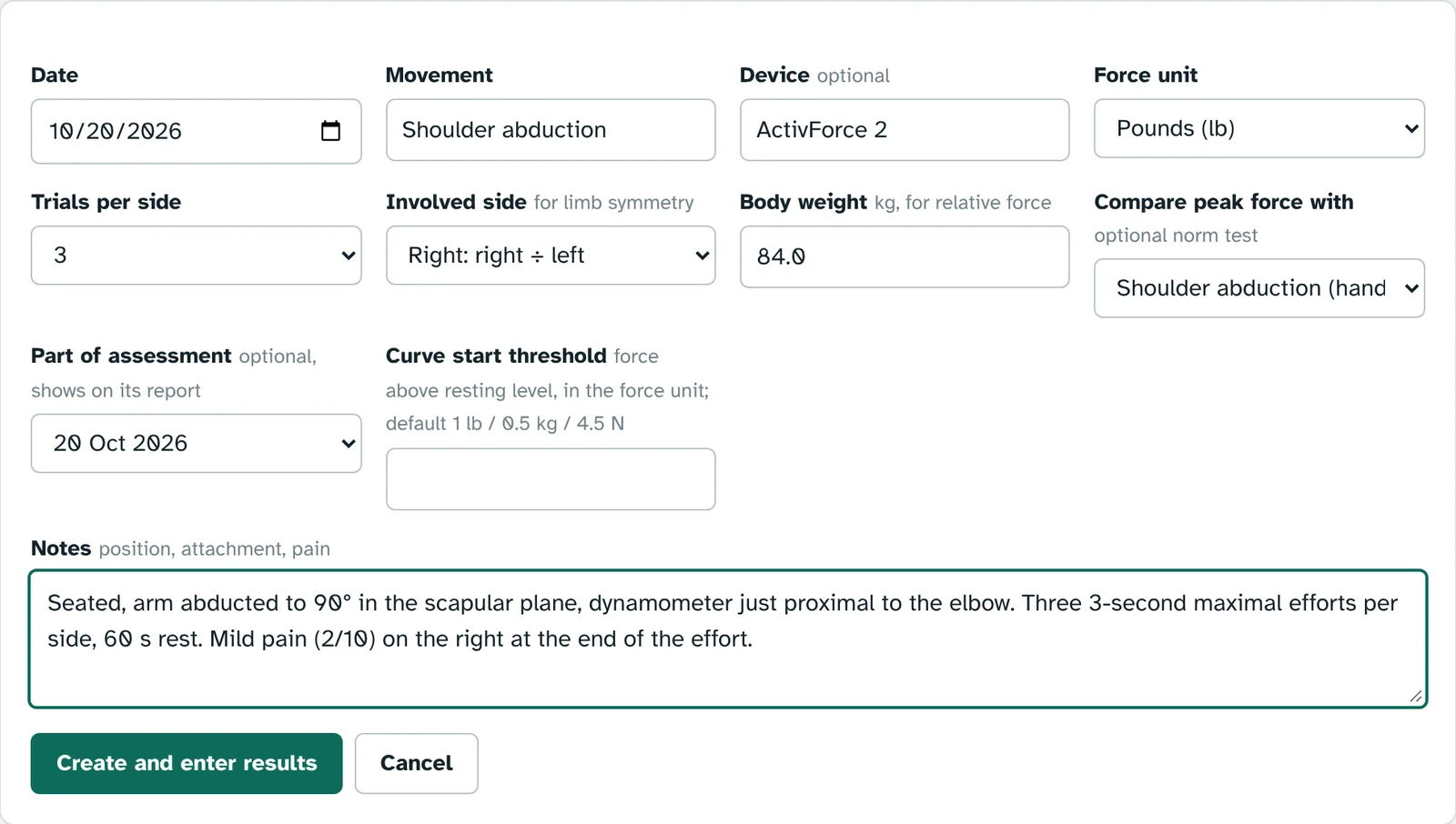
- Force unit: the unit your device exports (pounds, kilograms or newtons).
- Involved side: for an injured or operated side choose it here, so symmetry is calculated as involved ÷ uninvolved. Otherwise the weaker side is divided by the stronger one.
- Body weight gives relative peak force (× body weight).
- Compare peak force with a norm test (for example shoulder abduction) to rate the peak force against the hand-held dynamometry norms.
- Part of assessment links the test to an assessment, so it is printed on that assessment's report.
2. Enter or import the results
Press Create and enter results. There are three ways to fill the table:
- Type the values into the table: one column per trial, right, then left, then both sides.
- Paste from the device export or Excel: copy the device's results table (with or without the metric names; names such as "Peak force(LB)" and "RFD@100ms" are recognised) and press Fill the table.
- Import raw force-time curves: a CSV or text file with time in the first column and force in the next columns (one per trial). Choose the side and the first trial, then Calculate and fill. The start of the effort is the first point above the resting level by the start threshold; force, RFD and impulse are calculated at 100, 200 and 300 ms and to peak.
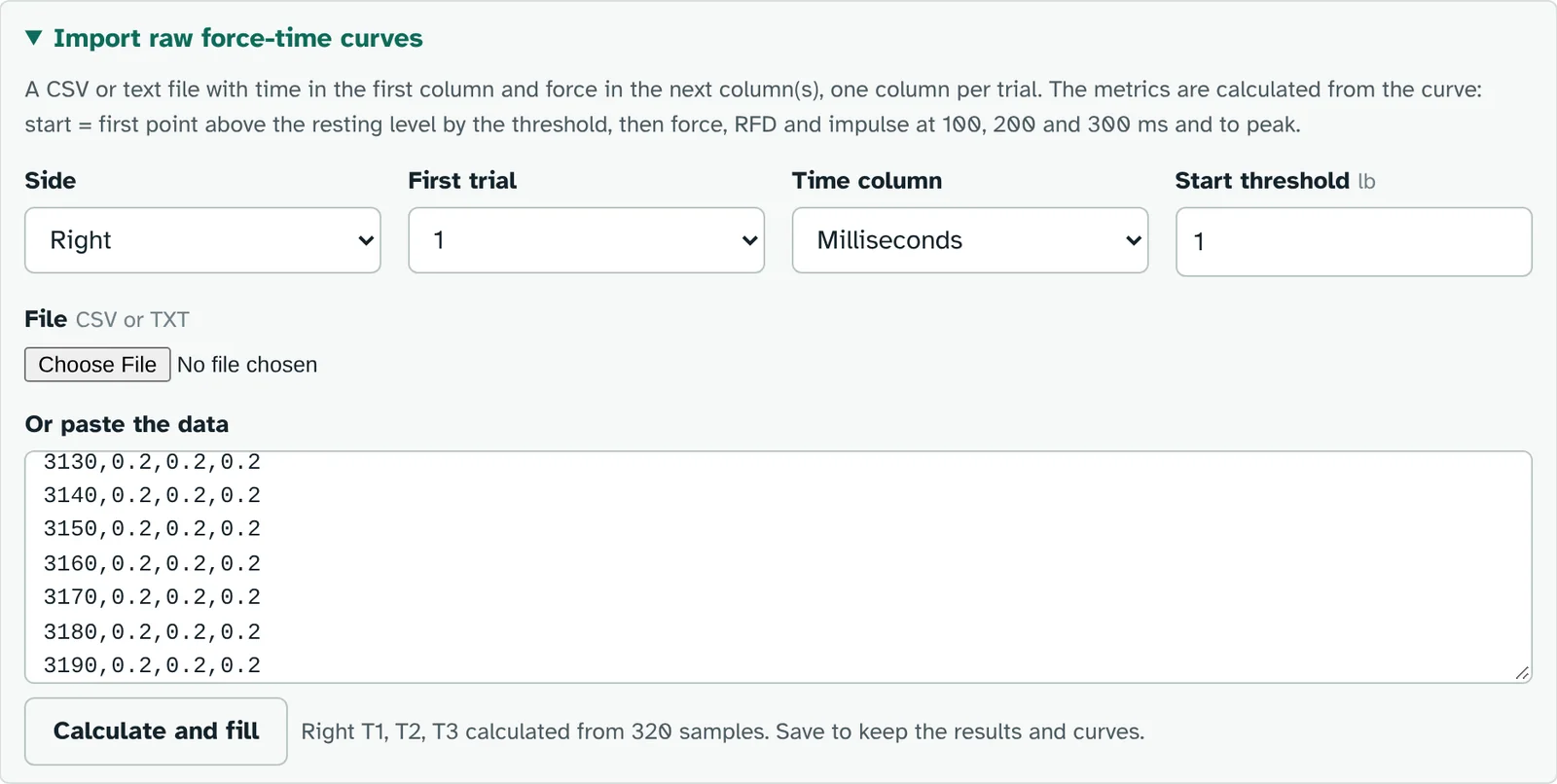
Press Save results. The analysis below the table updates as you type, even before saving.
3. Read the analysis
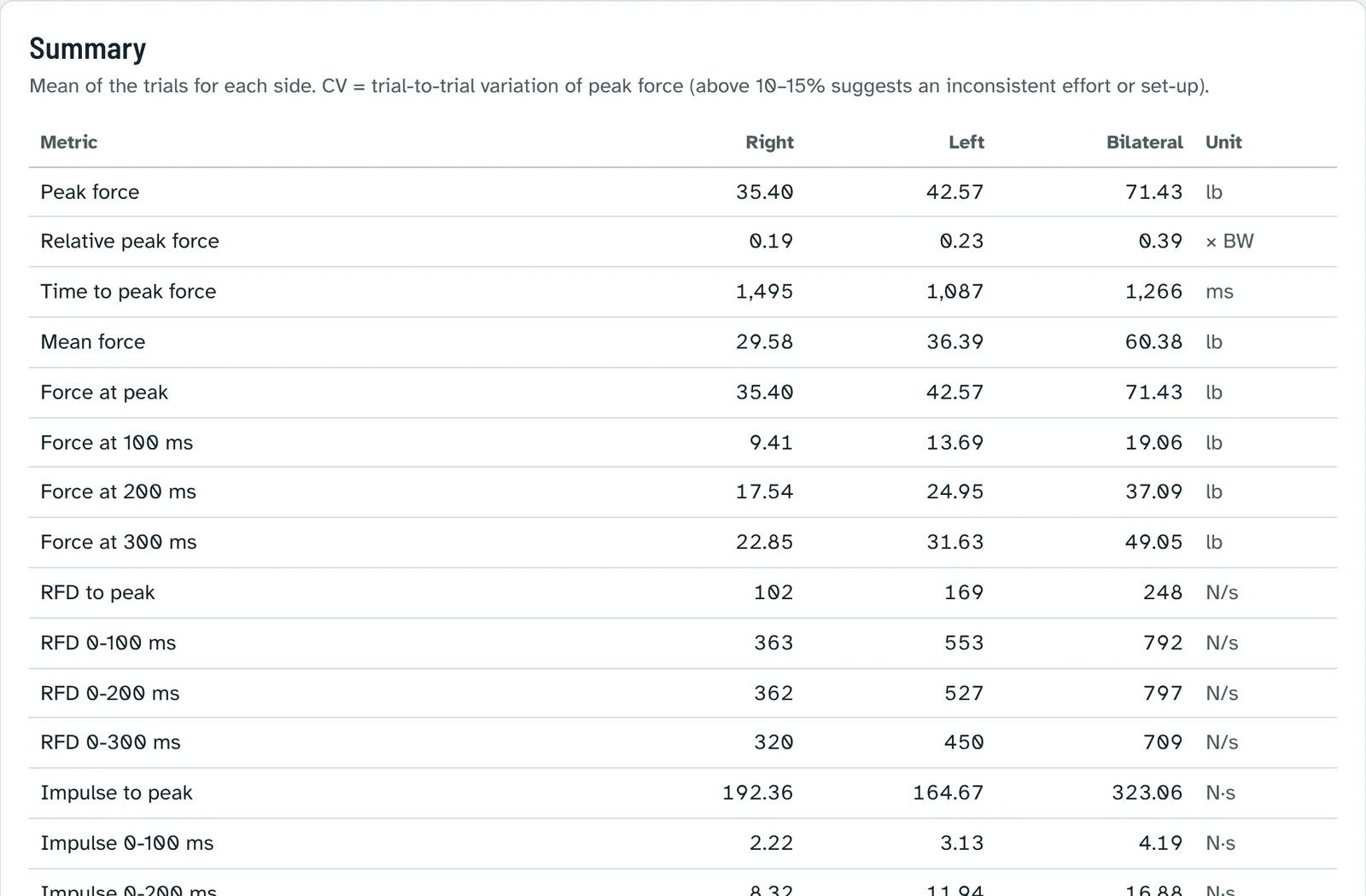
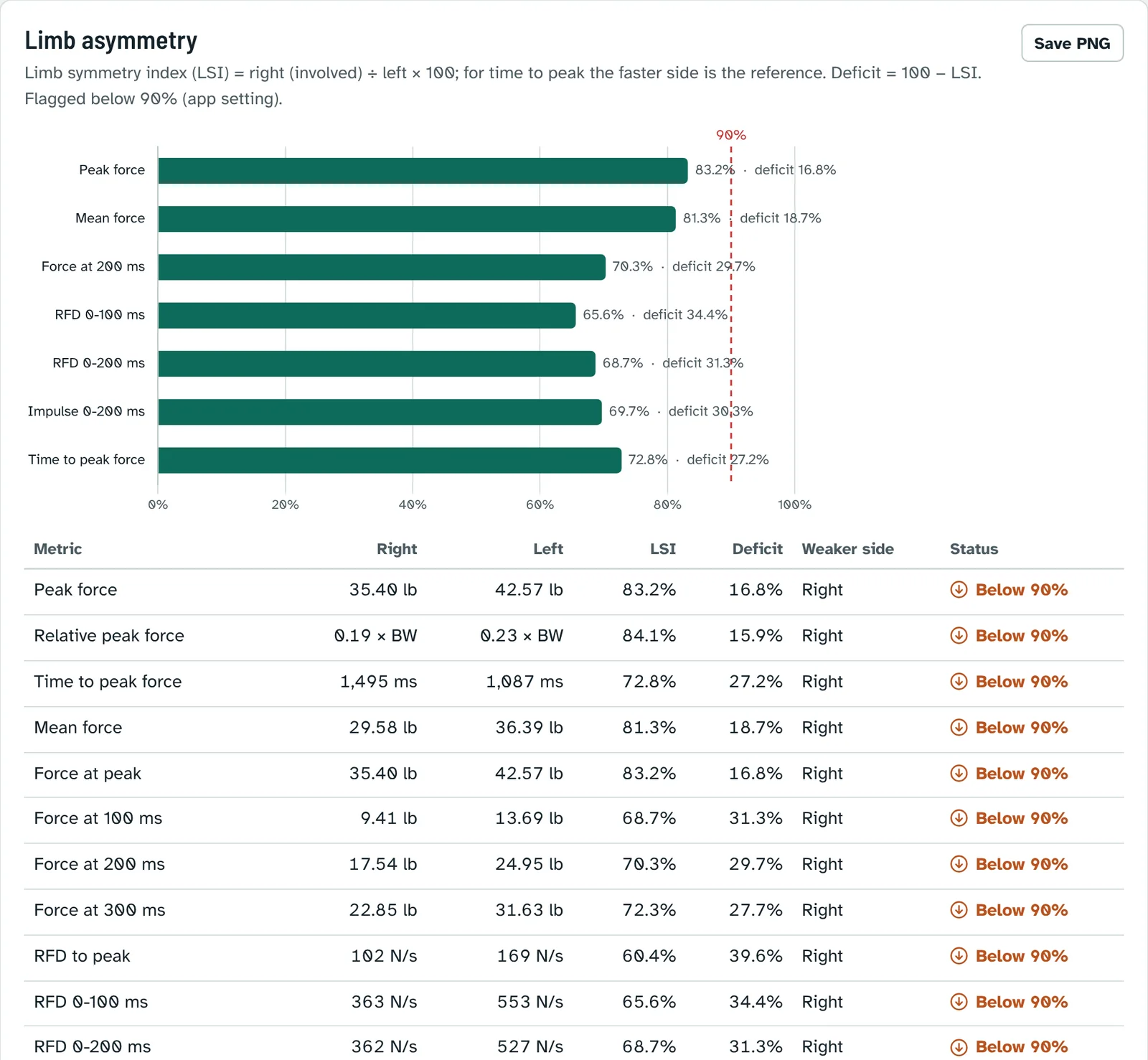
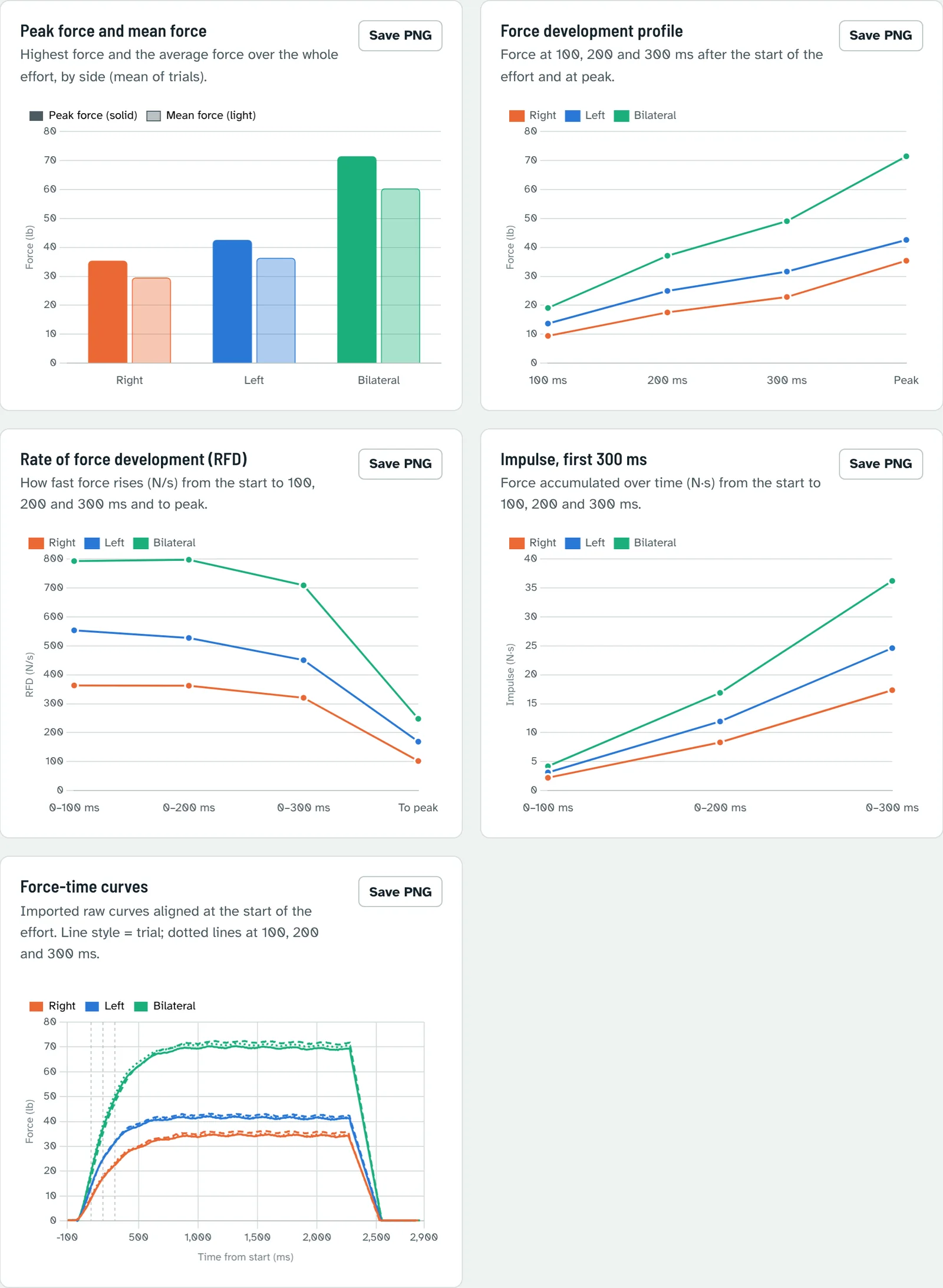
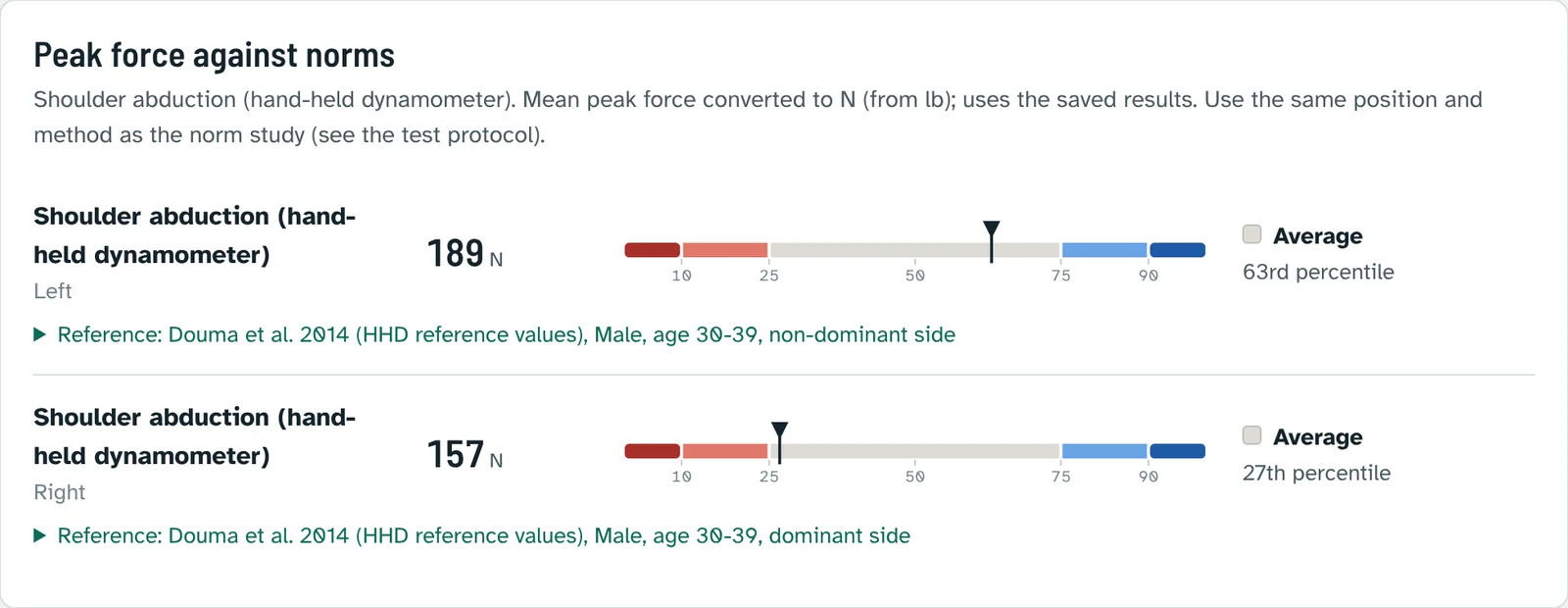
Use Print or save PDF for the full test with charts. When the test is linked to an assessment, its results and symmetry also appear on that assessment's report.
14Insurance billing
StrengthNorm prepares a superbill: the claim details, the services with codes and units, and the objective test results that document them. You then enter it in your billing software or clearinghouse, or give it to the patient. StrengthNorm does not send claims itself.
1. Add the insurance case
On the client's page, under Insurance and billing, press Add insurance case. Choose the payer type: commercial health insurance, Medicare, Medicaid, workers' compensation, no-fault / auto (PIP), self-pay or other. The form shows the fields that payer needs.
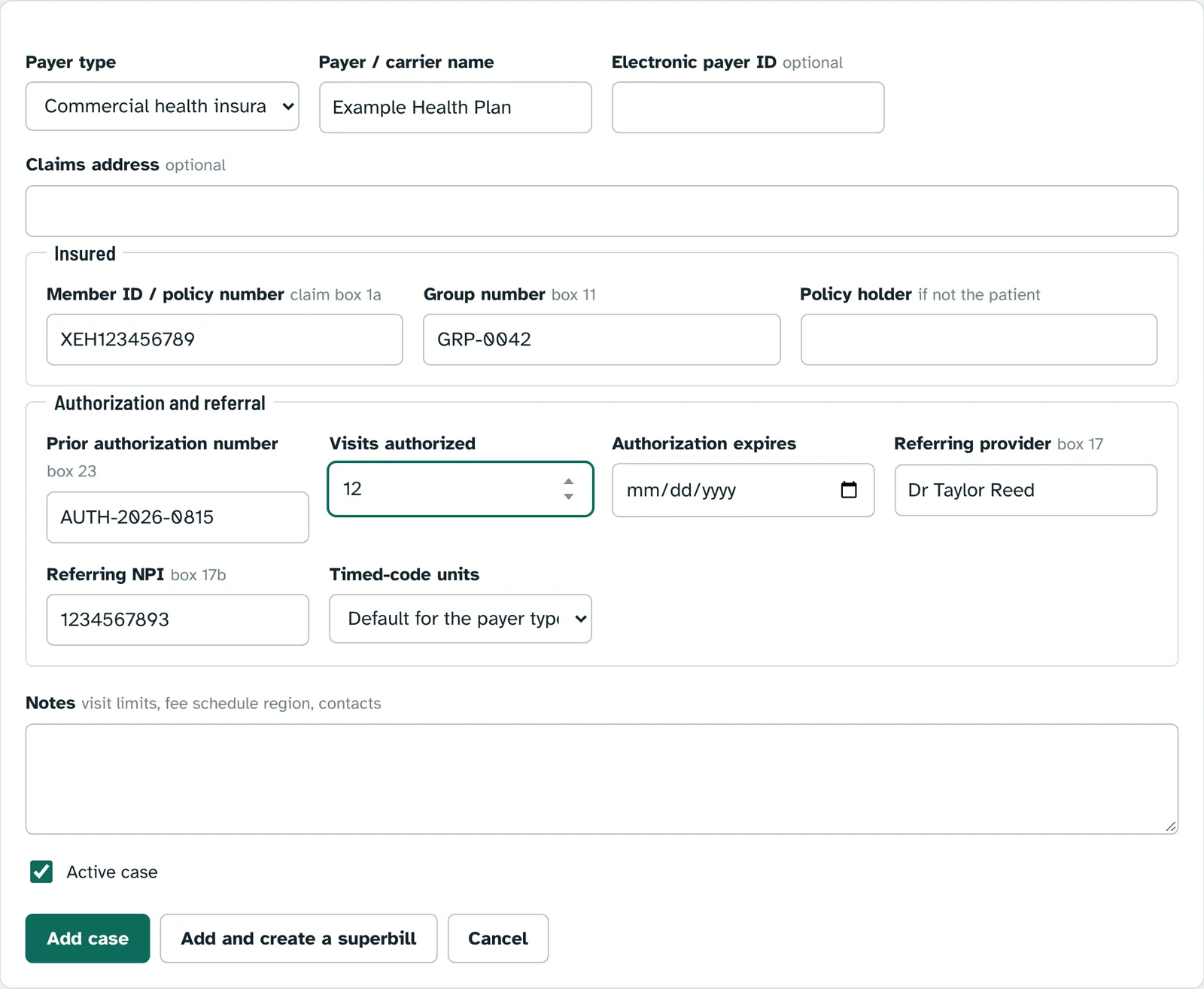
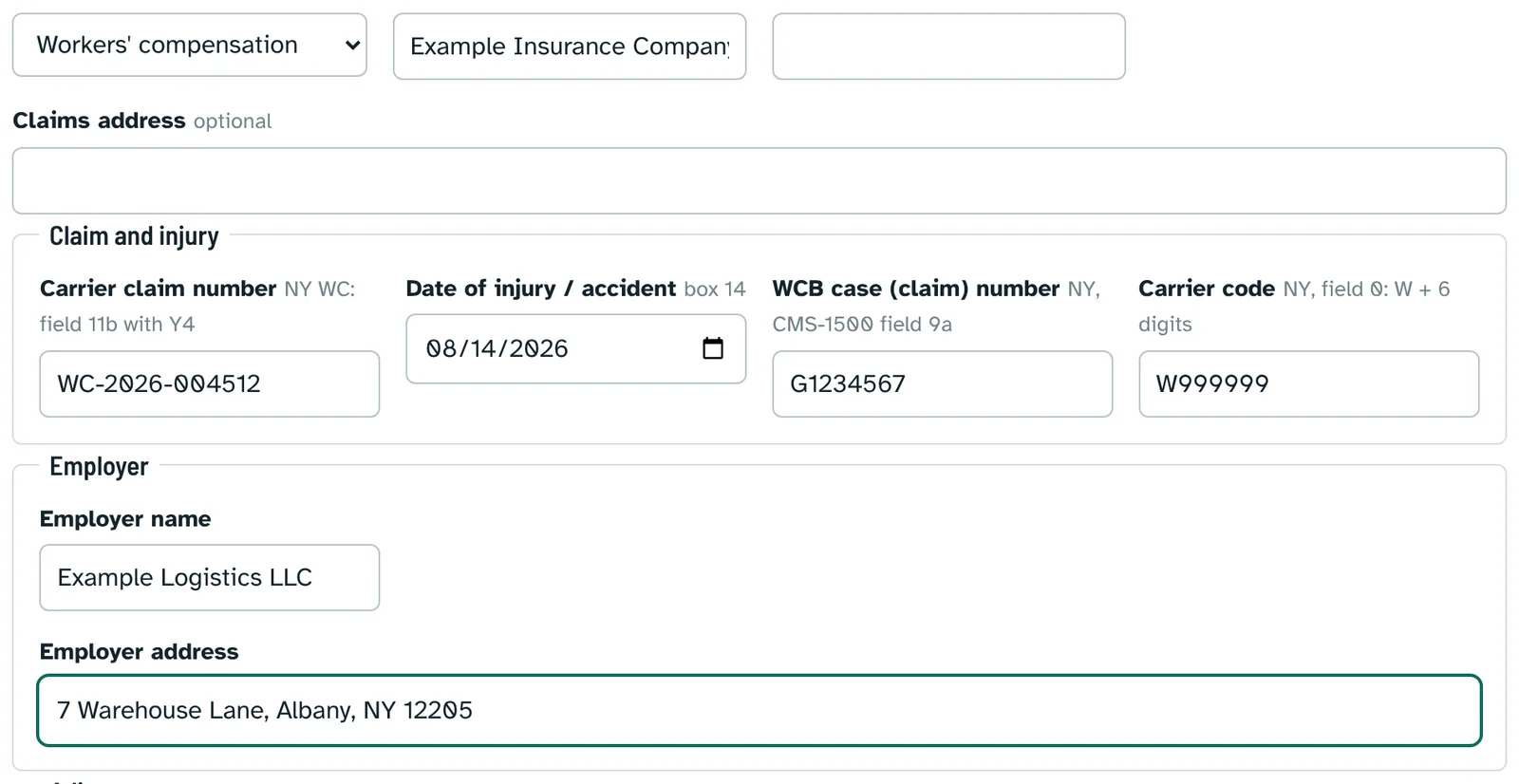
Timed-code units follows the payer type (the CMS 8-minute rule for Medicare and Medicaid, per code for the others) and can be changed for the case.
2. Create the superbill
After testing, open the report and press Bill this visit (or New superbill on the client's page or under Insurance billing).
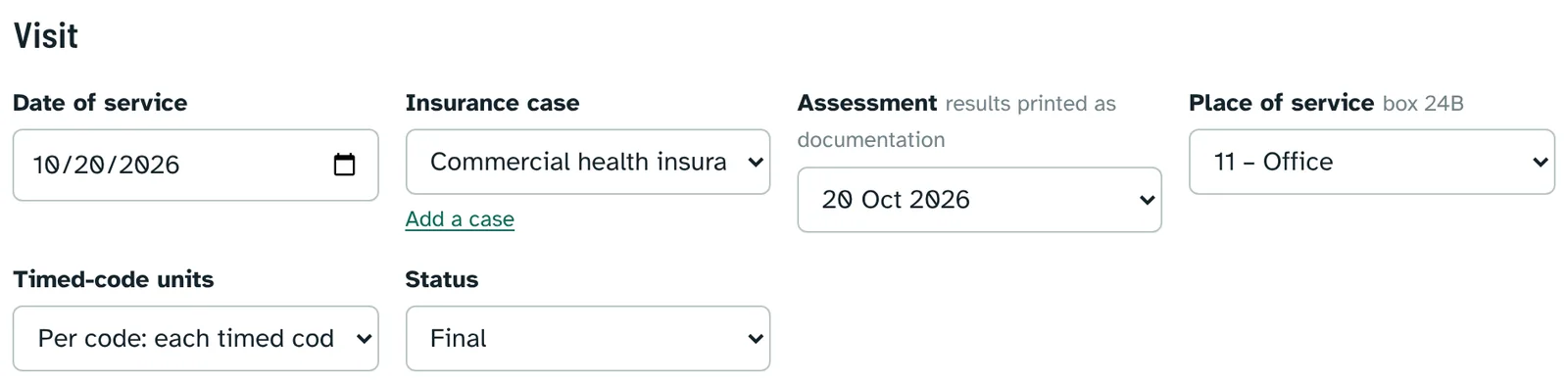
Visit: date of service, insurance case, the assessment to print as documentation, and the place of service.
Diagnoses: up to 12 ICD-10-CM codes (A to L). Start typing to pick from your code list; the description appears below.
Services: the CPT or HCPCS code, modifiers (for example GP for physical therapy), the minutes, the diagnosis pointers (for example A,B) and the fee per unit. Units of timed codes such as 97750 are calculated from the minutes.
Set the status (draft, final, submitted, paid or void) and press Save superbill or Save and print.
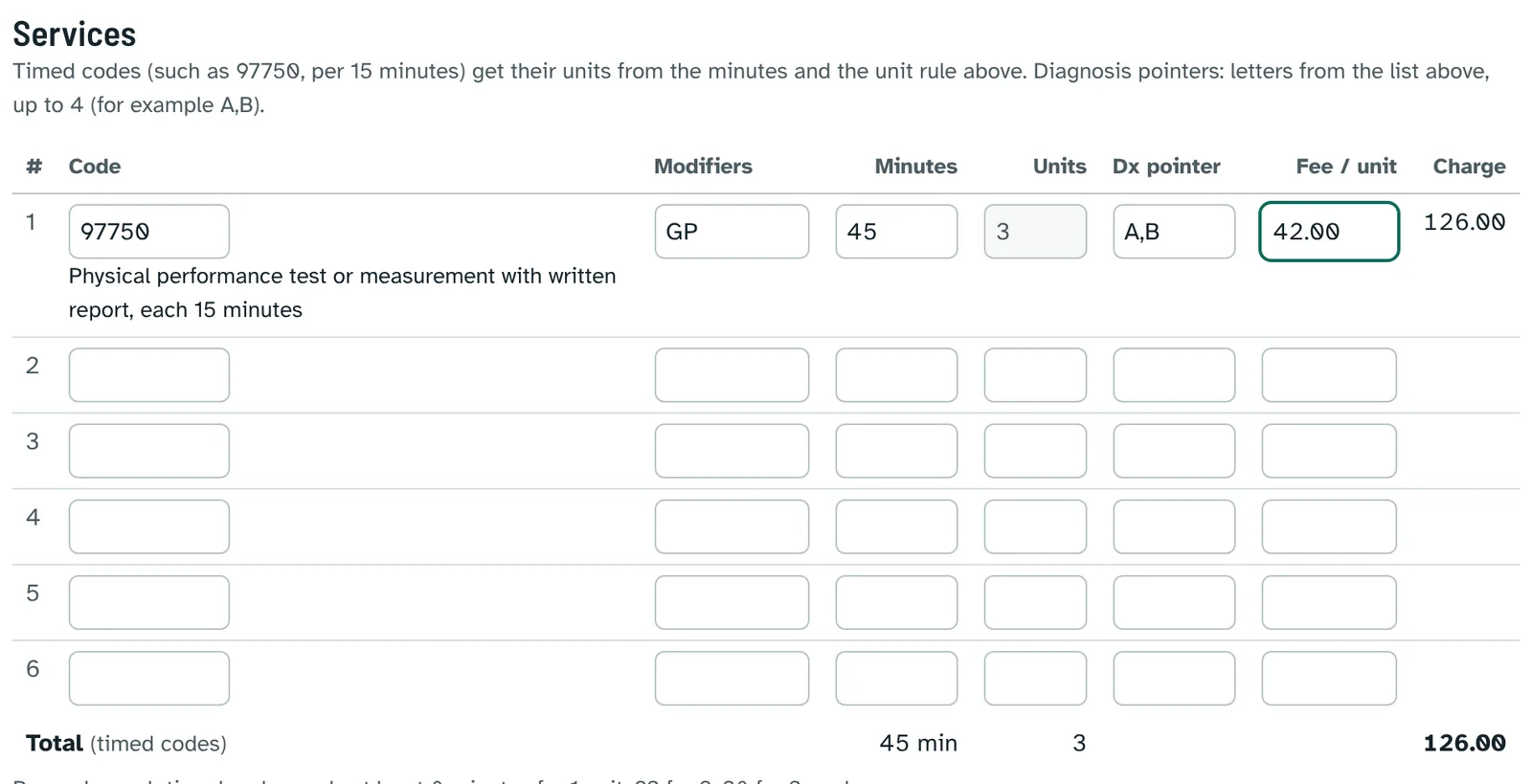
Coding checks appear when something looks wrong, for example a missing therapy modifier for Medicare, an evaluation and 97750 on the same day, an injury code without its 7th character, or New York workers' compensation rules. They are reminders and never block saving.
3. Print
Print superbill gives a one-document summary: provider, patient, payer and claim fields, diagnoses, services and the objective test results. For New York workers' compensation it also lists the CMS-1500 fields the Board requires.
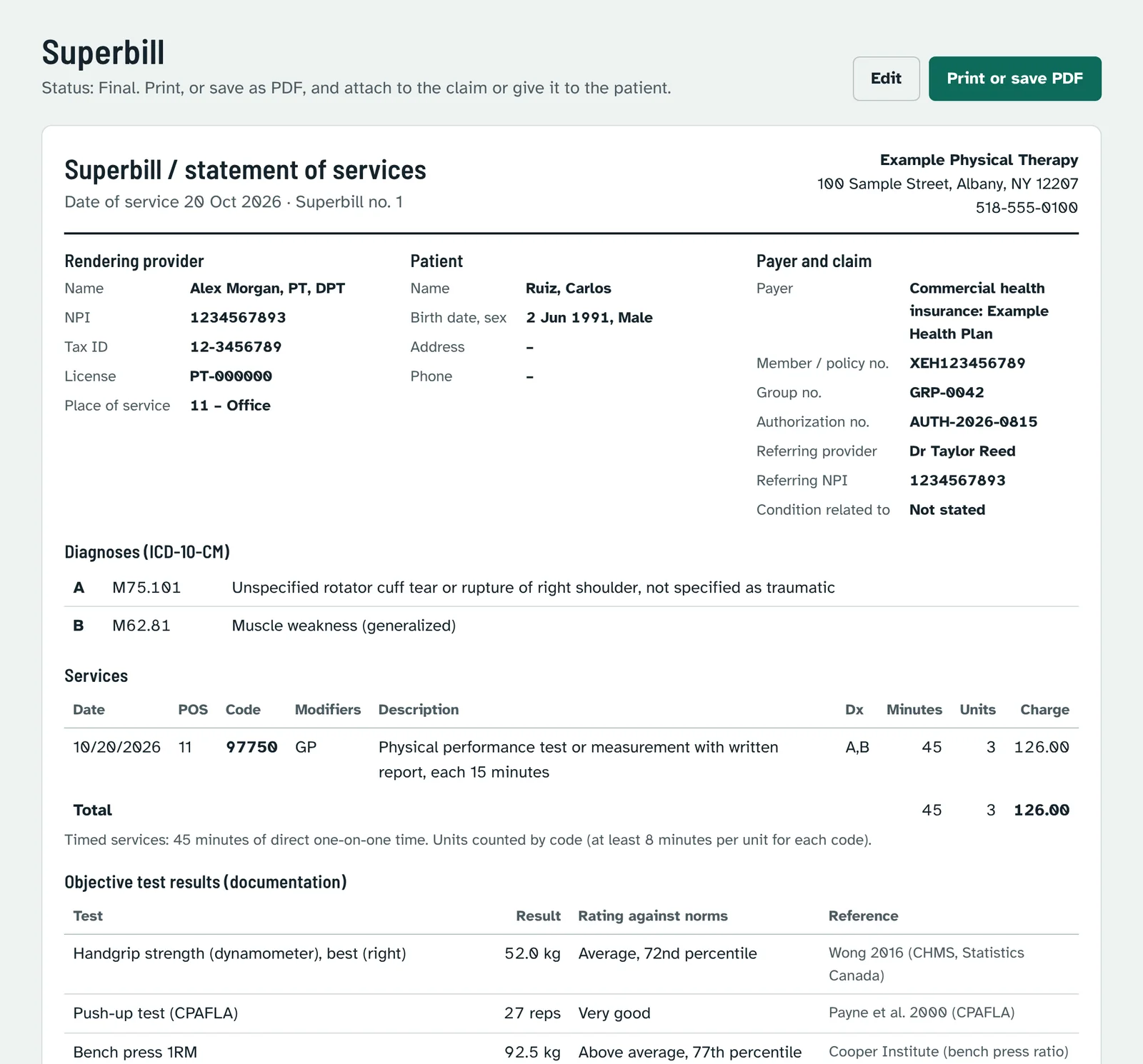
The Insurance billing page lists all superbills with filters by status and payer type, and links to the Billing guide: which codes apply to strength and force-time testing, timed units, modifiers, and the rules for Medicare, workers' compensation and no-fault, with sources.
15Privacy and security
- Your clients, assessments, tests and superbills are visible to you only. Other clinicians cannot see them; the site administrators can, to support you.
- Use a strong password of your own and sign out on shared computers.
- Payment details are entered on PayPal's or Stripe's pages and never reach StrengthNorm.
- Changes to your name or sign-in email are recorded in your account history and the administrator is notified.
16Questions and problems
- The confirmation email did not arrive.
- Check the spam folder, then send a new link from the Check your email page (or open the sign-up page). Only the newest link works.
- "This link has expired" or "This link does not work".
- Links work for 48 hours and only once. If your email is already confirmed, just sign in. Otherwise send yourself a new link.
- "Confirm your email first" when signing in.
- Open the link in the confirmation email. The message has a Send a new link button.
- I forgot my password.
- Ask the administrator to set a new password, then change it under Account.
- I changed my email. How do I sign in?
- With the new email and your usual password.
- A test shows "No norm table is loaded for this test".
- The result is saved and used in ratios and progress charts, but there is no reference table to rate it against.
- No rating appears for a result.
- Check the client's sex, birth date and weight; the client may also be outside the ages or the unit of the reference study.
- My subscription ended. Is my data lost?
- No. Your clients and reports are kept; subscribe again on the Subscription page to open them.
- How do I close my account?
- Cancel the subscription on the Subscription page, then ask the administrator to delete the account.
Other questions: contact@doctor.am.
Create your account in two minutes.